Invoice and Quote Templates in Autovella
Make your invoices and quotes look like your brand with a visual block builder or custom HTML, then set the layouts your team should use by default.
Templates control how your invoice and quote PDFs look and what a new invoice starts with. Admins manage them in Settings > Company Settings > Invoices. Invoice Templates can be built with a drag-and-drop Visual editor or raw HTML, begin from one of ten starter designs, and carry defaults such as payment terms, tax rate and line items. Quote Templates style the PDF created by Create Quote on a deal. You can mark one of each as the default.
In this guide
Where to find and manage invoice and quote templatesHow to create an invoice templateHow to design a template with the visual block builderHow to use HTML and placeholders in a templateHow to set a default template and apply templates to invoicesHow to create a quote templateFrequently asked questions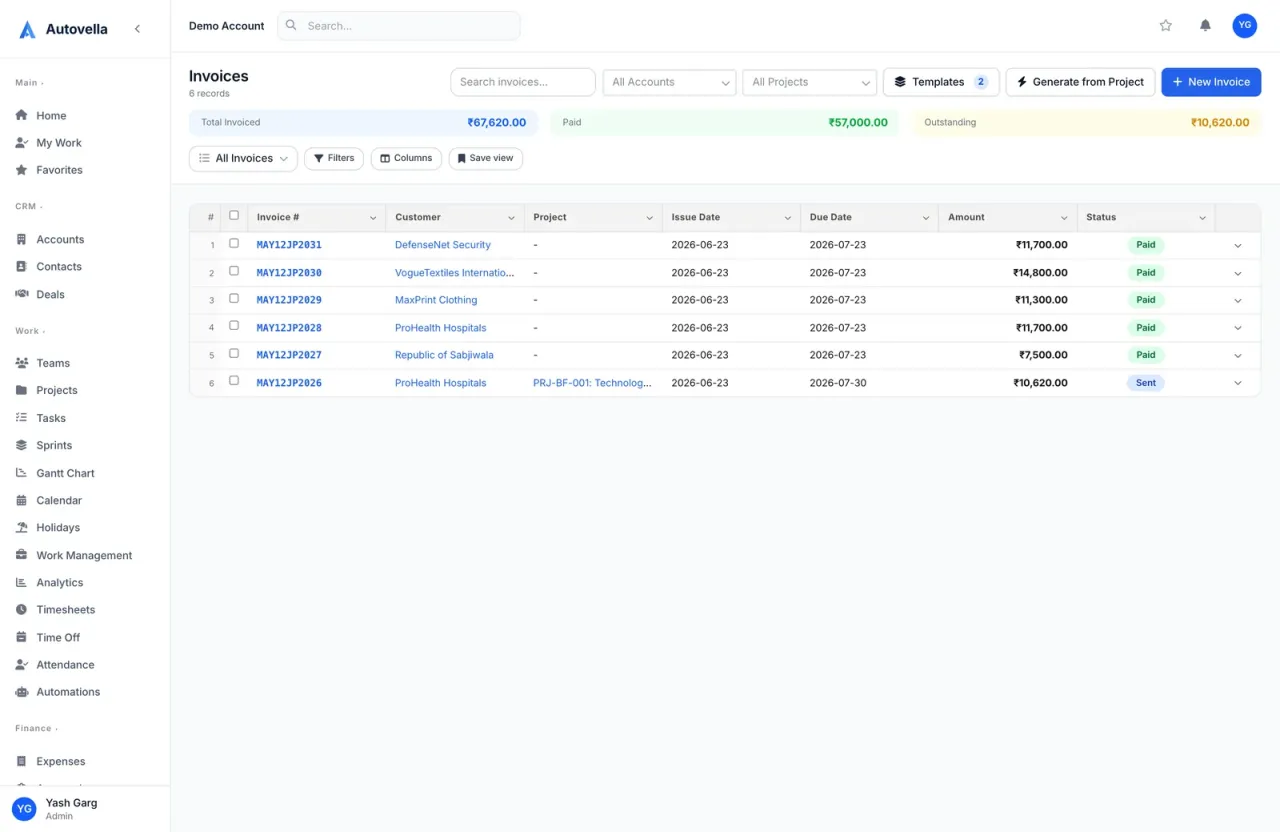
Where to find and manage invoice and quote templates
Go to Settings > Company Settings > Invoices. Besides the defaults at the top, the page has three template-related cards:
- Invoice Templates: reusable presets for layout, colors and line items. Click New Template to add one.
- Quote Templates: the PDF layout used by Create Quote on a deal. This card appears only when the CRM feature is enabled for your organization.
- PDF / Print Format: the look used when an invoice has no template selected. It sets Paper Size (A4, US Letter or US Legal), Accent Color, whether to show the company logo and name, and whether to include your Tax/VAT number.
Each saved template appears as a row with its name, description, layout, tax rate, payment terms and currency. The row buttons are Set Default (or Clear Default if it is already the default, admins only), Edit and a bin icon to delete. Templates are part of the Templates feature, so if the section does not respond, ask your account owner whether it is enabled. Changing templates needs permission to update settings.
Your logo, company name, address and email come from Company Information, so fill those in first. Upload a logo there (PNG, JPG or SVG, around 200 by 80 px works well).
How to create an invoice template
- Click New Template in the Invoice Templates card.
- Enter a Template Name (required), such as Consulting Services, and an optional Description.
- Choose how to design it with the Visual or HTML toggle (both described below).
- Choose the Accent Color with the color picker or by typing a hex code like #2563eb, and a Font: Inter, Arial, Georgia, Times New Roman, Helvetica, Roboto or Open Sans.
- Use Show / Hide Sections to switch company logo, Tax/VAT number, notes section, payment terms text, time entry breakdown and expense breakdown on or off.
- Set the invoice defaults this template applies: Payment Terms, Tax Rate (%), Currency (shown when multi-currency is enabled), Default Notes and Payment Terms Text.
- Under Default Line Items click Add Item to prefill recurring lines with a description, quantity and rate.
- Click Save Template. Editing later uses Save Changes.
The Preview button renders your design with sample data in a side panel so you can check it before saving.
Start from a starter. Pick Load starter and choose Classic, Modern, Minimal, Corporate, Compact, Elegant, Receipt, Bold, Statement or Creative. If you already have HTML in the editor, Autovella asks before replacing it. Starters are the quickest way to a professional result, and you can then adjust them.
How to design a template with the visual block builder
Switch the toggle to Visual to build the layout without writing code. The editor has three panels:
- Palette (left): blocks to drag in. The blocks are Header, Bill To, Invoice Meta (issue date, due date and payment terms), Line Items, Totals, Notes, Terms, Text / HTML, Divider and Spacer.
- Canvas (middle): drag blocks here and reorder them by dragging. The Clear link empties the canvas.
- Properties (right): click a block to edit it. For example the Header can be split, centered, left or right and has a title text and a show-logo option; Line Items can show or hide the Qty and Rate columns; Totals can be aligned left or right; Notes, Terms and Bill To have an editable heading; Divider has a color and Spacer a height in pixels.
When you save, the layout is converted to HTML automatically, so you can switch to the HTML tab afterwards to fine-tune the code. The Text / HTML block accepts placeholders, which is handy for a bank-details footer such as Please pay {{company.name}} within 14 days.
Invoices that look like your brand
See the template builder with your own logo and colors.
How to use HTML and placeholders in a template
In the HTML tab you edit the template code on the left and see a live preview on the right. Templates use Handlebars-style placeholders in double braces. Click the Placeholders button in the editor for the full reference. The most useful ones are:
- Invoice:
{{invoice.number}},{{invoice.status}},{{date invoice.issueDate}},{{date invoice.dueDate}},{{invoice.paymentTerms}},{{invoice.notes}},{{invoice.terms}}. - Amounts:
{{money invoice.subtotal invoice.currency}},{{money invoice.taxAmount invoice.currency}},{{money invoice.total invoice.currency}},{{money invoice.balance invoice.currency}}. - Customer and project:
{{customer.name}},{{customer.email}},{{customer.address}},{{project.name}}. - Your company:
{{company.name}},{{company.email}},{{company.address}},{{company.logoUrl}},{{settings.accentColor}}. - Line items loop:
{{#each items}} {{description}} {{quantity}} {{rate}} {{amount}} {{/each}}. - Conditions and helpers:
{{#if invoice.notes}}...{{/if}}, and the helpersmoney,date,upper,eq,gt,addandsub.
For companies in India there are additional GST placeholders such as {{company.gstin}}, {{customer.gstin}}, {{invoice.gstTaxType}} and the CGST, SGST and IGST rates and amounts. See Multi-currency and GST tax setup.
If your HTML has a syntax error, the preview shows a Preview error message, and when someone prints an invoice that uses the broken template they see Template render failed and a plain built-in layout is used instead. Fix the template and save again.
How to set a default template and apply templates to invoices
- Set a default. Click Set Default on a template. The row gets a star badge reading Default. The New Invoice and Generate from Project forms are pre-filled from it (a banner says Pre-filled from default template), and invoice PDFs use it when no other template is chosen. Click Clear Default to remove it.
- Use a template for a new invoice. On the Invoices page click Templates, then Use next to a template to open the Generate from Project form pre-filled with the template's payment terms, tax rate, discount, currency and notes. The same modal has Create New Template for a quick preset.
- Choose the PDF design per invoice. The New Invoice form has an Invoice Template field, and the invoice editor has a PDF Template field. Leave it on the org default, or pick a specific design for that customer.
When an invoice is printed, Autovella picks the invoice's own template first, then the organization default, then the built-in Classic layout. That is why an old invoice can look different from a new one if you changed the default in between: choose the template explicitly on invoices that must stay unchanged.
How to create a quote template
Quotes are generated from a deal. Open a deal and click Create Quote: Autovella renders a PDF from the deal, with its line items and amount, and attaches it to the deal. The layout comes from your quote template.
- In the Quote Templates card click New Template.
- Enter a Template Name, for example Standard Quote.
- Choose a starter (Classic or Modern) in Start from a starter layout and click Load.
- Edit the Template HTML, which is required, and click Preview to render it against a sample deal.
- Click Save, then Set Default if this should be used for new quotes.
Quote templates are HTML only, with no visual builder, because tax, discount and line items come from the deal itself. Click Placeholders for the field list. Useful ones are {{quote.number}}, {{date quote.issueDate}}, {{date quote.validUntil}} (the deal's Close Date), {{money quote.total quote.currency}}, {{customer.name}}, {{deal.name}}, {{company.name}}, {{company.logoUrl}} and the {{#each items}} loop with name, description, quantity, unit price and amount. Until you create one, the built-in Classic layout is used. For the CRM side, read Managing accounts, contacts and deals.
Frequently asked questions
No. Switch the template editor to Visual, drag blocks such as Header, Bill To, Line Items and Totals onto the canvas, and set their options in the Properties panel. Autovella converts the layout to HTML when you save. You can also load one of ten starter designs.
Upload it under Settings, Company Settings, Company Information, then make sure Show company logo is ticked on the template or in the PDF / Print Format card. Templates reference it with the company.logoUrl placeholder.
The invoice's own template if one is selected, otherwise your default invoice template, otherwise the built-in Classic layout. You can change it per invoice in the PDF Template field while editing.
The selected template's HTML has a syntax error, usually an unclosed placeholder or block. Autovella falls back to a built-in layout so you can still print. Open the template, use Preview to find the error, fix it and save.
Yes. Quote Templates are separate from invoice templates and are used by Create Quote on a deal. They are HTML-based, with Classic and Modern starters and a Set Default option. The card is shown when CRM is enabled.
Anyone with permission to update settings can add and edit templates, and admins can set or clear the default. The Templates feature must also be enabled for your organization.