My Work, Search and Favorites in Autovella
The fastest way to get through your day in Autovella: your dashboard, your personal task list, global search, favorites, notifications and profile preferences.
Autovella gives every user a personal starting point. The Dashboard summarizes your week, My Work lists every task assigned to you grouped by due date, the header Search box finds records across the app, the star saves any page to Favorites, and the bell collects notifications. In your Profile you can choose which page opens when you sign in.
In this guide
What is on your Dashboard?How to use My Work to manage your tasksHow to search across AutovellaHow to save pages as FavoritesHow to read and manage notificationsHow to set your landing page and timezoneFrequently asked questions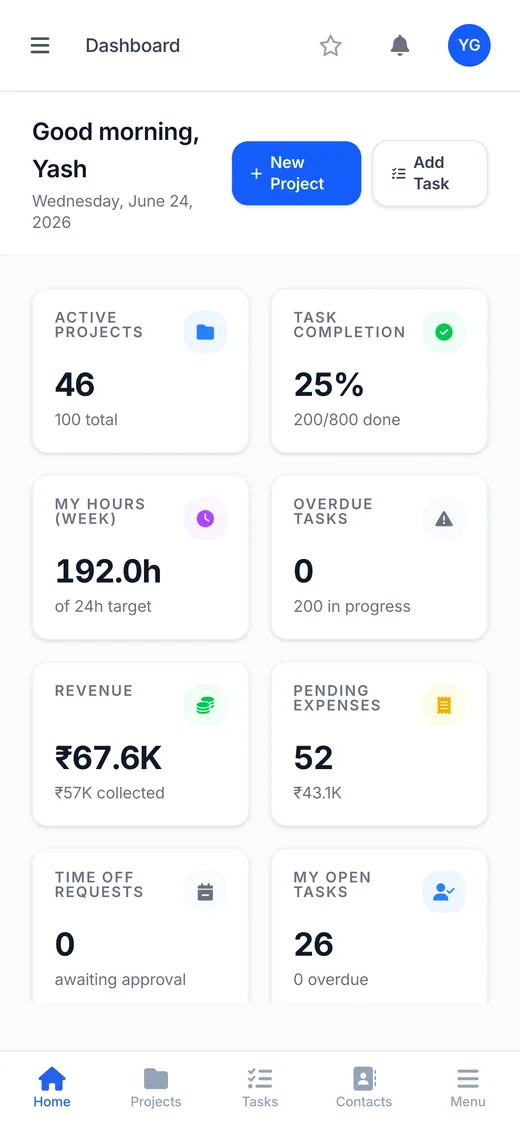
What is on your Dashboard?
Open Home in the sidebar to see your Dashboard, headed by a greeting with your first name. The widgets you see depend on your role and what your administrator has switched on. They can include:
- KPI cards such as Active Projects, Task Completion, My Hours (Week), Overdue Tasks, My Open Tasks, Pending Expenses and Time Off Requests. Finance and admin users can also see Revenue and invoice cards, and managers see Approvals Pending and Active Deals.
- Charts for Task Status, Project Status, My Week (hours), and for authorized roles Invoice Status and Deal Pipeline.
- Panels for My Tasks, Quick Actions (Log Time, Add Expense, Request Leave, New Invoice, New Account and Reports, shown only if you may use them), Recent Projects, Unapproved Timesheets, Upcoming Holidays, On Leave Today and Working Remotely Today.
Administrators control the dashboard per role under Settings → Customization → Dashboards, where they can turn the whole dashboard or individual widgets on or off. If you see No dashboard configured, your role currently has no widgets. Client (customer) users do not get a dashboard.
How to use My Work to manage your tasks
My Work is your personal to-do list. Open it from Main → My Work. It is available to every role and always shows tasks assigned to you (up to 500 tasks), across all projects.
The summary tiles
At the top, four tiles count Overdue, Due Today, In Progress and Done This Week.
List view
Tasks are grouped by when they are due: Overdue, Due Today, This Week, Next Week, Upcoming, No Due Date and Completed. Each row shows the task, project, status, priority and progress. You can:
- Tick the circle checkbox to mark a task complete. Progress is set to 100% automatically.
- Click the status or priority pill on a row to change it without opening the task.
- Click a task title to open the full task.
- Search with Search tasks... and narrow with All Statuses and All Priorities. Click the refresh button to reload.
Board view
Switch to Board and use Group to organize cards by Status, Priority or Project.
Bulk actions
Select several tasks with their checkboxes (or use the group's select-all box). A bar appears showing N selected with Status, Priority and Complete buttons to update them all at once, plus a clear button.
A task with no due date lands in No Due Date, where it is easy to forget. Add end dates so everything shows up in the right group. See Tasks, Boards, Lists, Calendar and Gantt for creating and editing tasks.
How to search across Autovella
Use the Search... box in the top header bar (shown on larger screens). Type at least 2 characters and matches appear as you type, grouped by type: Projects, Tasks, Accounts, Contacts, Invoices, Teams and People.
- Use the arrow keys and Enter, or click a result, to jump straight to it. Press Esc to close the panel.
- Click into the empty box to see your Recent items. Clear removes them.
- Choose See all results for ... at the bottom to open the full Search page.
On the Search page you can toggle the type chips to include or exclude record types, and each type shows up to 25 matches with your search term highlighted. Inactive records are labelled Inactive.
You only see what you are allowed to see. Search respects your role and sharing, so a project you are not part of, or a module you cannot access, will not appear in results. If you cannot find something you expect, check with an administrator or project manager.
Make Autovella your own
Book a live walkthrough and we will help your team set up dashboards, saved views and favorites that fit how you work.
How to save pages as Favorites
Favorites are your own shortcuts to pages you visit often, including filtered list views.
- Go to the page you want, for example a saved view of high-priority tasks.
- Click the star in the header, labelled Add to Favorites. It fills in when the page is a favorite, and the tooltip changes to Remove from Favorites.
- Open Favorites from the sidebar to see all of them as cards.
On the Favorites page you can also click Add Favorite to create one by hand. Enter a Title and a URL (either an Autovella path such as /dashboard or a full web address), and optionally a Description, Color and Icon. You can edit or remove a favorite later. The star counts the full address including filters, so a page with different filters is a separate favorite.
Favorites are personal, so removing one never affects colleagues.
How to read and manage notifications
Click the bell in the header to open Notifications. A badge shows how many are unread. Autovella notifies you about things like tasks assigned to you or changed, comments where you were @mentioned, timesheets submitted for your approval, records shared with you, and deal follow-up reminders. Use Mark all as read to clear the badge, or click a notification to open the item.
The dropdown also offers desktop alerts. Choose to turn them on and allow your browser's permission prompt, and you will get pop-up alerts for new notifications while the tab is open. A Turn off link disables them again. If your browser has blocked notifications, re-enable them in the browser's site settings first.
How to set your landing page and timezone
Open the avatar menu (top right) and choose Profile. Besides Personal Information and Change Password (Current Password, New Password, Confirm New Password), two cards control how Autovella feels:
- Default Landing Tab. The page you land on after signing in or opening the home page. Pick one from the list, such as Dashboard, My Work, Projects or Tasks (only pages your role can reach are offered), then click Save. Choose Role default to go back to the standard behavior.
- Timezone. Dates and times throughout the app are shown in this zone. It is detected automatically on your first login and falls back to your organization's default timezone. Change it and click Save if you travel or the guess is wrong.
If you do not pick a landing tab, most roles open the Dashboard. Customers and users whose dashboard is switched off open the first page available to them, typically Projects.
Quick tips
- Set your landing tab to My Work if you mostly execute tasks.
- Star the saved views you use daily so they are one click away.
- Collapse sidebar sections you do not use by clicking their headings.
- Admins: new to Autovella? Start with Getting Started with Autovella.
Frequently asked questions
Tasks shows tasks across your projects with filters and saved views. My Work is a personal list of only the tasks assigned to you, grouped by due date, with summary tiles and quick status changes.
At least 2 characters. Results are grouped into Projects, Tasks, Accounts, Contacts, Invoices, Teams and People, and you only see records you have permission to view.
Click the star in the top header while on that page. You can also open Favorites and click Add Favorite to enter a title and URL manually. Favorites are personal to you.
Go to Profile from the avatar menu, choose a page under Default Landing Tab and click Save. Pick Role default to reset it.
Customer users do not have a dashboard, and an administrator can turn the dashboard or individual widgets off for a role under Settings, Customization, Dashboards. In that case you land on the first page available to your role.
Click the bell, choose the option to enable desktop alerts and allow the browser permission prompt. You can turn them off from the same dropdown.