Tasks, Boards, Calendar and Gantt Views
One set of tasks, four ways to see it: a sortable list, a Kanban board, a calendar and a Gantt timeline. Here is how to create, organize and schedule work.
Tasks in Autovella live in one place and appear everywhere. Create them from Tasks or from a project's Tasks tab, view them as a List or Board, see due dates on the Calendar, and plan sequences and dependencies on the Gantt Chart. Changing a task in one view updates it in all the others.
In this guide
How to create and assign a taskHow to use List and Board viewsHow to use subtasks and dependenciesHow to plan with the Gantt chartHow to use the CalendarTips and troubleshootingFrequently asked questions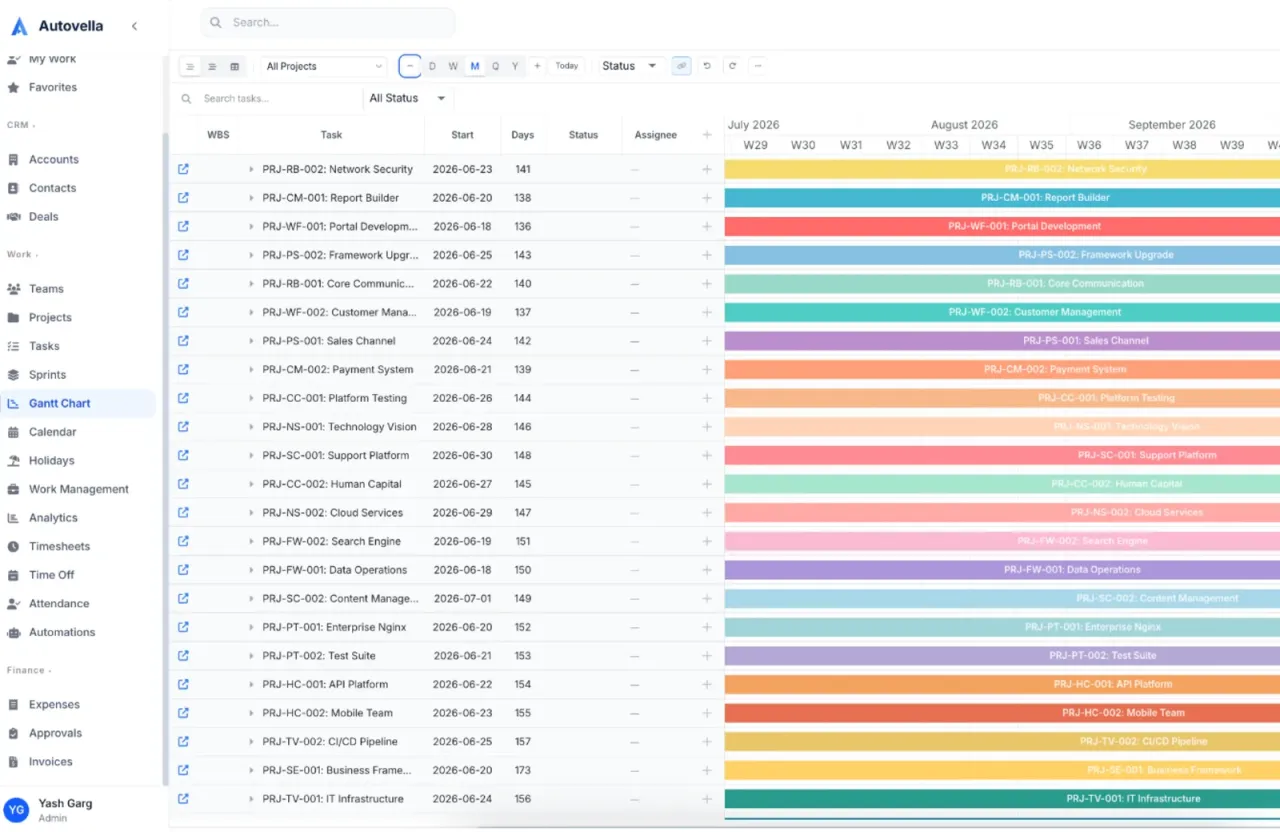
How to create and assign a task
Open Tasks and click New Task (or use New Task on a project's Tasks tab). The form has these fields:
- Title and Project are required, as are Start Date and End Date.
- Status. The defaults are To Do, In Progress, Review and Done, and your administrator can customize them.
- Section, available once you choose a project, groups the task within the project.
- Parent Task (Subtask) makes it a child of another task.
- Sprint, Priority (Low, Medium, High, Critical), Estimated Hours, Progress (%) and Tags.
- Assign To lets you pick one or more users or whole teams. Assignees are added to the project team automatically.
- Milestone and Billable checkboxes. Billable controls whether logged time can be invoiced.
Fields your administrator has restricted, or marked as required, will be hidden, read-only or marked with an asterisk accordingly. Custom fields appear at the bottom of the form.
Inside a task
Click a task title to open its detail page. It shows Details, Description, Assignees (with Add Team to assign a team), Child Tasks (with Add Child Task), Dependencies, Attachments (Attach File), Comments and a History of changes. Use Edit to change fields.
Comments and @mentions. Type @ followed by a colleague's name in a comment and pick them from the list. They receive a notification. You can edit or delete your own comments, and edited comments are marked as edited.
How to use List and Board views
The Tasks page has a List and a Board toggle at the top.
List view
The list shows Task, Project, Status, Priority, Assigned, Due Date and more. Use Columns to add Start Date, Est. Hours, Progress, Created By and Modified columns, and drag column edges to resize. Click a column header to sort. Select several rows with the checkboxes for bulk actions such as delete.
- Search by name with the search box.
- Click My Tasks to see only what is assigned to you.
- Click Filter to filter by project, priority, status or assignee, or use Filters to build conditions on fields like Due Date, Billable or Milestone.
- Child tasks are hidden from the main list by default so it stays readable. Open the parent task to see them.
Board view
The board turns tasks into cards in columns. Use Group by to choose columns by Status, Priority, Project or Assignee. Drag a card to another column to change that field, for example moving a task from In Progress to Review. On a project's Tasks tab the same List and Board toggle is available, plus Tree View with Expand All and Collapse All to see tasks and their children as a hierarchy.
Saved views
Once you have the filters and columns you like, click Save view, name it, and optionally tick Make this my default view or Share with the whole organization. Use the view picker to switch between My views and Shared views, and Manage views to rename, delete or change the default.
If you only want your own assignments with extra detail, My Work is a personal task list grouped by due date.
How to use subtasks and dependencies
Subtasks (child tasks)
Break big tasks down by opening the parent and clicking Add Child Task, or by choosing a Parent Task (Subtask) when creating a task. A parent task's progress is derived from its child tasks. In the Gantt chart you can also use Indent and Outdent to nest tasks.
Dependencies
A dependency says one task cannot start or finish until another does. You manage them on the Gantt chart, and they are listed on each task's Dependencies section with their status. When you edit a dependency you choose the type:
- Finish to Start (FS), the default and most common.
- Start to Start (SS).
- Finish to Finish (FF).
- Start to Finish (SF).
You can also set a Lag (days). A negative value is lead time, so the next task can start early. You can remove a dependency from the same dialog. Dependencies can only link tasks, not whole project rows.
Plan your next project visually
Book a live walkthrough and we will build a Gantt plan with dependencies using your real project.
How to plan with the Gantt chart
Open Gantt Chart in the sidebar, or choose Gantt from a project's actions menu. Use the project box at the top to choose a single project or All Projects.
- Use the zoom buttons D, W, M, Q and Y (day, week, month, quarter, year), and click Today to jump back to the present.
- Change the bar colors with the Status or Priority color mode, and turn dependency arrows on or off with the link button.
- Drag a bar to move a task, or drag its ends to change its dates. Undo and Redo buttons (Ctrl+Z and Ctrl+Shift+Z) reverse mistakes.
- Use the search box and status filter to focus on part of the plan.
- The More actions menu has Expand all, Collapse all, Indent (Tab), Outdent and Schedule from end.
- Click Task to add a task, and use the export button for Print / PDF, CSV or JSON.
Select a project to edit. The All Projects view is read-only and shows the note "Select a project to edit dates". Choose a single project to drag bars and edit dependencies. If you cannot edit tasks in your role, the chart is also view-only.
To move a whole project's dates at once, use Reschedule in the project's actions menu instead. See Creating and Managing Projects.
How to use the Calendar
Open Calendar to see tasks, projects and holidays on one calendar. Switch between month, week, day and list layouts with the buttons at the top right.
- Assigned to Me or All chooses whose work you see.
- The All, Tasks, Projects, Holidays buttons filter the type of item, and a project filter narrows to one project.
- The dropdown By Start Date or By Due Date decides which single day each task is placed on.
- Click a task to open its side panel, or a project to go to it. Hover over a task to see its start and due dates. Holidays are shown for information only.
Holidays and approved leave are managed in Time Off, Holidays and Attendance. The Calendar page appears when at least one of projects, timesheets or time off is enabled for your organization.
Tips and troubleshooting
- Give every task an assignee and an end date, so it shows up in My Work, the Calendar and the Gantt chart.
- Use Milestone for key dates and Billable to control invoicing.
- Use sections or sprints to group work. For agile teams see Sprints and Agile Planning.
- Save the filters you use every day as a view.
Common problems
- I cannot see a task. You can only see tasks in projects you can access. Ask a project manager to add you to the team.
- The subtask is missing from the list. Child tasks are hidden from the main list; open the parent task.
- I cannot drag Gantt bars. You are probably on All Projects, or your role is view-only.
- A task I expect is missing on the Calendar. Check the Assigned to Me and type filters, and whether the date mode matches the date you set.
Frequently asked questions
Use the List and Board toggle on the Tasks page, and open Calendar and Gantt Chart from the sidebar. All views use the same tasks, so a change in one appears in the others.
Open the parent task and click Add Child Task, or choose a Parent Task (Subtask) when creating a new task. Subtasks are hidden from the main Tasks list; open the parent to see them.
Finish to Start (the default), Start to Start, Finish to Finish and Start to Finish, each with an optional lag in days. A negative lag creates lead time.
The All Projects view is read-only. Select a single project from the project box to move bars and edit dependencies. Your role also needs permission to edit tasks.
Type @ and start typing their name, then pick them from the list. They get a notification about the mention.
Yes. Set your filters and columns, click Save view, and name it. You can make it your default or share it with the whole organization.