To import data into Autovella, open the avatar menu and choose Import data (or click Import on the Accounts, Contacts, Projects or Tasks page). The wizard guides you through six steps: choose the object, choose what to do, upload a CSV, map fields, review and import, and view the results. Nothing is saved until you have seen a preview.
In this guide
What can you import into Autovella?How to prepare your CSV fileHow to run the import, step by stepHow to add new records, update existing ones, or bothHow to read and fix import errorsFrequently asked questions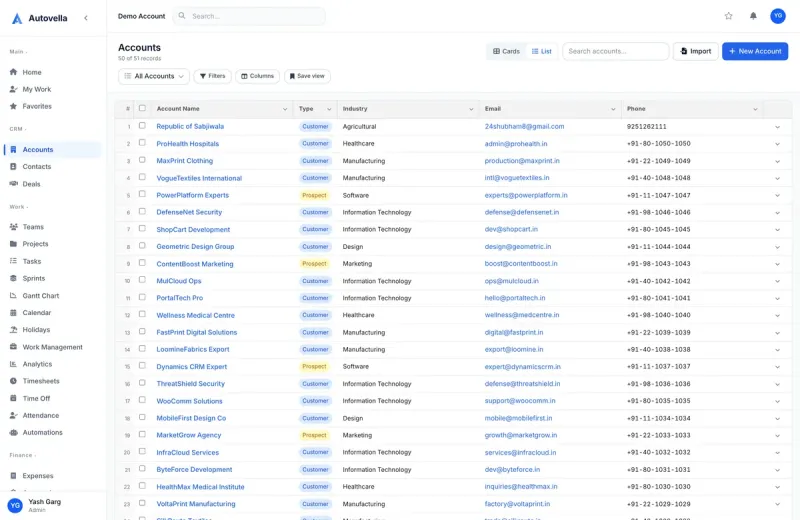
What can you import into Autovella?
The wizard (titled Import Data) can load five kinds of records. Only the objects you are allowed to import are shown on the first step.
- Accounts. Name is required.
- Contacts. First Name, Last Name and Account are required. The account must already exist.
- Projects. Project Name is required. Status, priority, dates, budget, account, owner and team are optional.
- Tasks. Title and Project are required. Section, parent task, status, priority, dates, estimated hours, progress, tags, milestone, billable and assignee are optional.
- Users. First Name, Last Name, Username and Email are required. Role defaults to employee.
Deals, invoices, expenses and timesheets are not available in the CSV importer.
Who can import
By default administrators and managers can import accounts, contacts, projects and tasks. Other users can import an object if an administrator has granted them the create permission for it, or the special import permission. Importing Users is restricted to administrators (or people with permission to create users). If you cannot see an Import button, or the first step says you do not have permission to import any records, ask your administrator.
Custom fields your organization has added to an object also appear as importable fields and are marked (custom) in the mapping list.
How to prepare your CSV file
A good file makes the rest of the process painless.
- One record per row, headers in the first row. Blank rows are ignored.
- Limits. Up to 10,000 rows and 25 MB per import. Split bigger files.
- Start from the template. On the upload step, expand Need a starting template? and click download a CSV template. It contains every column Autovella recognizes for that object, including your custom fields.
- Use familiar headers. Autovella auto-matches common names, for example Account Type, City, Sector, Dept or Mobile, but you can always map by hand.
How values are read
- Yes/no fields accept true, false, yes, no, y, n, 1 and 0.
- Numbers such as budget or annual revenue may include currency symbols and thousands commas; they are stripped.
- Dates must be real dates between the years 2000 and 2100. A two-digit year can be rejected, so use four digits.
- Choice fields such as Status and Priority are matched without regard to capitalization. Priority is low, medium, high or critical. Project and task statuses must match your configured status values.
- Tags on tasks can be separated by commas, semicolons or pipes.
- Email columns must look like an email address.
Linking records by name
Columns that point at other records (a contact's Account, a project's Account, Owner or Team, a task's Project, Section, Parent Task or Assignee) are matched by name or email, or by Autovella's record ID. Accounts match on id, name or email; users on username, email or full name; projects on name; teams on name. The linked record must already exist, so import in this order: Accounts, Contacts, Projects, Tasks.
Spelling matters. The most common error is Account "Acme Ltd" not found because the file says "ACME Limited". Import or fix the account first, or make the names identical.
How to run the import, step by step
- Choose object. Click the card for Accounts, Contacts, Projects, Tasks or Users. If you started from an Import button, the object is already selected.
- What to do. Choose how to treat each row (see the next section).
- Upload CSV. Drag in your file or click to browse. If special characters look wrong, change Character encoding (UTF-8 is recommended; UTF-16, ISO-8859-1, Windows-1252 and Macintosh are available). Value separator is auto-detected, or you can pick comma, semicolon, tab or pipe.
- Map fields. Each CSV column is shown with a sample value and a dropdown of Autovella fields. Autovella maps what it recognizes and shows how many columns were mapped. Required fields are marked with an asterisk. Choose Don't import for columns you want to skip. A banner turns green when the mapping is complete, or lists any required fields still unmapped.
- Review & import. Autovella runs a dry run and shows counts for Total rows, Create, Update, Skip (no match) and Errors, plus a table of the rows that will not import and why. Click Import N rows to commit. Keep the tab open until it finishes.
- Results. See how many records were Created, Updated, Skipped and Failed, then click View (for example View Accounts) or Import another file.
You can move back through the steps with Back and the step list on the left to change mappings, and Cancel at the top leaves the wizard without importing anything.
Migrating from another tool?
Book a live walkthrough and we will plan your import order and column mapping with you.
How to add new records, update existing ones, or both
On the What to do step choose one of three options:
- Add new records creates new records. If your file contains a Record ID column and a row matches, that record is updated instead of duplicated.
- Update existing records changes only records that already exist. Rows with no match are skipped, not treated as errors.
- Add new and update existing updates matches and creates the rest.
For the two update options you choose Match existing records by a field: Record ID, Name or Email for accounts, Record ID or Email for contacts, Record ID or Name for projects, Record ID or Title for tasks, and Record ID, Username or Email for users. That column must be mapped in the next step, and the wizard warns you if it is not.
On an update, only the columns you map are changed and required fields are not needed, so you can fix a single field across hundreds of records. Record IDs are Autovella's own long identifiers, so for data coming from a spreadsheet it is usually easier to match on Name, Email or Username.
Updating existing records needs more than permission to import: you need edit permission on that object. Rows that match a record you may not edit are skipped with a message, and the rest of the file continues.
Avoid duplicates. Running the same file twice in Add mode can create the same records twice. When re-importing, use Add new and update existing with a match field.
How to read and fix import errors
Row numbers in the error table match the row in your spreadsheet, where row 1 is the header, so the first data row is row 2. Typical messages and fixes:
- "X" is not a valid email or is not a number. Correct the cell and re-import the affected rows.
- Account / Project / User "X" not found. Create the linked record first, or fix the spelling.
- "X" must be one of .... The value is not an allowed choice, such as a priority of "urgent". Use one of the values listed.
- ... is required. A required column is empty on a row that would create a record.
- No existing record found for ... The match value on an update does not exist.
- User limit reached. Contact Autovella to upgrade. Your plan's user seats are full, so no further users are created.
Rows with errors never block the others. Fix just those rows in a new file and import again.
Importing users
If your file has no Password column, Autovella generates a temporary password for each new user and shows the list once on the Results step. Copy it then, because it will not be shown again. Users are asked to change it on first login.
If an import stops partway
Large files are processed in batches. If something interrupts it, the Results page shows Import incomplete and what was saved. Do not re-import the whole file, because the saved rows would be duplicated. Import only the remaining rows.
Frequently asked questions
Accounts, Contacts, Projects, Tasks and Users can be imported from CSV. Deals, invoices, expenses and timesheets are not part of the CSV importer.
Each import can contain up to 10,000 rows and be up to 25 MB. Split larger files into several imports.
Yes. Choose Update existing records, or Add new and update existing, then pick a field to match on such as Record ID, Name or Email. Only the columns you map are changed.
The Review step lists each row that will not import and the reason, such as an invalid email, a linked account that does not exist, a value that is not an allowed choice, or a missing required field. Other rows still import.
You need permission to import that object. Administrators and managers can import accounts, contacts, projects and tasks by default, and only administrators can import users. Ask your administrator to grant access.
If the file has no password column, Autovella generates a temporary password for each new user and shows them once on the Results page. Users are prompted to change it on first login.