Autovella has two separate pieces of money setup. Multi-currency lets you add extra currencies under Settings > Company Settings > Currencies, with exchange rates against your company currency that refresh daily. Tax is configured in Settings > Company Settings > Invoices: a default tax title and rate, optional overrides by customer country, and, for companies in India, full GST with CGST, SGST, IGST, LUT exports and HSN/SAC rate codes. Both are admin tasks that need permission to update settings.
In this guide
How to enable and add currenciesHow exchange rates work and how to refresh themHow to set the currency on invoices and expensesHow to set tax titles and rates on invoicesHow to set up GST for IndiaHow to manage GST rate codes (HSN/SAC)Frequently asked questions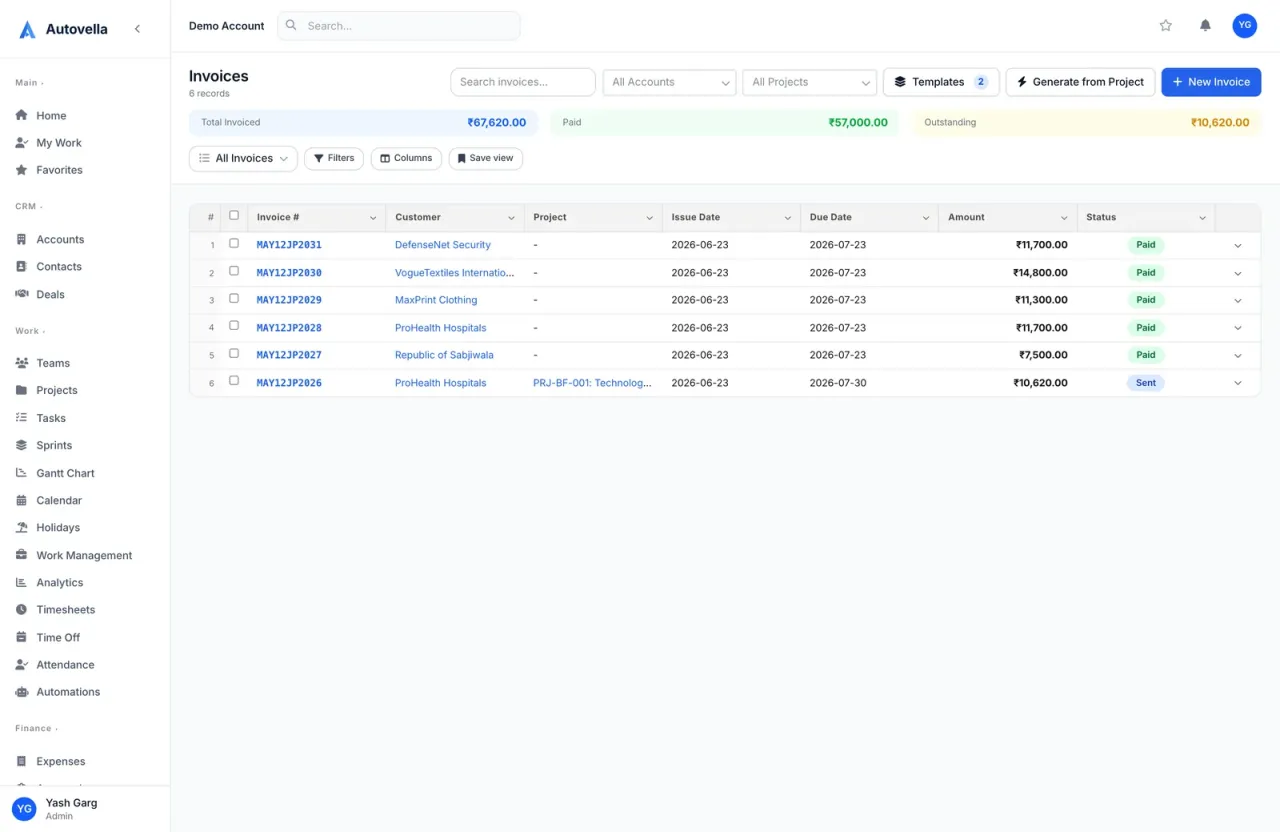
How to enable and add currencies
The Currencies page is only shown when the Multi-Currency feature is enabled for your organization. If you cannot find it under Company Settings, your plan does not include it yet, so contact your account owner or support. Without the feature, every invoice, expense and deal simply uses your company's default currency.
Step 1: set your corporate currency
Go to Settings > Company Settings > Company Information, choose your Default Currency and click Save Settings. This is your corporate currency: the currency that reports and totals are converted into. If it is not set, the Currencies page warns you to set it before adding anything.
Step 2: add the currencies you trade in
- Open Settings > Company Settings > Currencies.
- Click Add Currency. A list of every currency the rate feed can price against your corporate currency appears, with today's rate.
- Use the search box to find a code or name, tick the currencies you want, and click Add Selected.
Each added currency shows a line such as 1 EUR = 1.08 USD with the date it was last updated. The corporate currency itself needs no row because its rate is always 1.
Once a currency is added it appears in the Currency picker on invoices, expenses, deals, accounts and projects, and in invoice templates. Currencies you have not added are refused if someone tries to use them.
How exchange rates work and how to refresh them
Rates come from a free daily exchange-rate feed (about one day behind) and Autovella refreshes every added currency automatically each day. To pull fresh rates right now, click Refresh Rates on the Currencies page. A message tells you how many rates were updated and lists any currency the feed could not price.
- The rate always means units of your corporate currency per one unit of the foreign currency.
- The header line shows your corporate currency and Rates as of the newest update date.
- Totals that mix currencies, such as the expense summary tiles, are converted to the corporate currency using these rates. A currency with no rate is treated as 1 to 1, so keep rates populated.
- If the rate provider is unavailable you will see an error. Wait a few minutes and try Refresh Rates again.
Removing a currency
Click the bin icon beside a currency and confirm. Records already using it keep their stored values, but nobody can pick it on new records. You can add it back at any time.
Tip. Rates are applied when totals are calculated for display and reporting, so refreshing changes converted figures, not the amount printed on an existing invoice in its own currency.
How to set the currency on invoices and expenses
- Invoices. The Currency dropdown appears on New Invoice, on Generate from Project and in the invoice editor. It defaults to your company default currency.
- Expenses. Choose a Currency on the New Expense form.
- Invoice templates. Each template can carry a default currency, so invoices created from it start in the right one.
Pick the currency at creation time. Amounts are entered in that currency and shown with the matching symbol. See Creating and sending invoices and Tracking expenses.
Bill globally without the spreadsheet
See multi-currency invoicing and GST in your own workspace.
How to set tax titles and rates on invoices
Open Settings > Company Settings > Invoices and look at the Invoice Defaults card.
- Set Tax Title (default), up to 20 characters, for example GST, VAT or Tax. This is the label printed on the tax line.
- Set the Default Tax Rate (%) that new invoices start with.
- Choose default Payment Terms.
Different tax by customer country
Under Tax Titles by Customer Country click Add Country. For each row choose the Country, type the Tax Title (for example Sales Tax or VAT) and the Rate. Autovella matches the row against the billing country on the invoiced account. For example, a US customer can show Sales Tax at 7.25% while a German customer shows VAT at 19%. Make sure each account has its billing country filled in, otherwise the default applies.
On a single invoice
Open the invoice, click Edit and change Tax Rate (%). Tax is calculated on the subtotal after the discount, and the Totals panel updates live. You can also show your Tax / VAT Number on invoices: enter it under Company Information, then tick Include Tax/VAT number on invoice in the PDF / Print Format card.
Click Save Invoice Settings at the bottom to keep your changes.
How to set up GST for India
GST features switch on when your company country is India.
- In Settings > Company Settings > Company Information, set Country to India. The fields GSTIN and State appear.
- Enter your 15-character GSTIN, for example 22AAAAA0000A1Z5. Autovella checks the format and rejects an invalid one. Enter your State exactly as you spell it on customer records.
- On each customer account, fill in GSTIN, Billing State and Billing Country.
- Click Save Settings.
From then on, invoice tax is split automatically:
- CGST + SGST when your state matches the customer's billing state (the rate is halved between the two).
- IGST when the states differ.
- A customer outside India is treated as an export, never as CGST/SGST.
- LUT (Export, zero-rated) shows IGST at 0% and charges no tax.
In the invoice editor the GST Type dropdown offers Auto-detect, CGST + SGST (Intra-state), IGST (Inter-state), LUT (Export, zero-rated) and None. Override it when a spelling difference in state names makes auto-detect pick the wrong one. Each line also gains HSN/SAC and a tax-rate column.
When your company is in India and has a GSTIN, auto-numbering switches to a financial-year format such as INV/2026-27/0001, restarting each April.
How to manage GST rate codes (HSN/SAC)
Rate codes let a line item's HSN (goods) or SAC (services) code fill in its GST percentage automatically. They appear in Settings > Company Settings > Invoices in the GST Rate Codes panel, which is only shown for companies in India.
- Click Add Rate Code.
- Enter the HSN/SAC Code (for example 9983), the GST Rate (%) between 0 and 100, and an optional Description.
- Click Add. Each code can only be added once.
Use the bin icon to remove a code. Editing or removing a rate never changes invoices you have already created, because each line item keeps the rate it had when it was saved. Only new or edited lines pick up a changed rate. Rate codes need permission to update settings and the Invoicing feature to be enabled.
Frequently asked questions
It only appears when the Multi-Currency feature is enabled for your organization. Without it, all records use your company default currency. Ask your account owner or support about enabling it.
Rates are refreshed automatically each day from a free daily feed, and admins can click Refresh Rates on the Currencies page to update them immediately. The feed is about one day behind.
In the Settings screen you add currencies at the live feed rate and refresh them. There is no field to hand-edit a rate there, so if you need a fixed rate speak to support.
Records already using it keep their stored amounts and currency. The currency just stops being available in pickers on new records until you add it again.
In Settings, Company Settings, Invoices, use Tax Titles by Customer Country to set a title and rate per country. Autovella matches it to the billing country on the invoiced account, so make sure accounts have a billing country.
It compares your company state with the customer's billing state. Same state gives CGST plus SGST, different state gives IGST, and a customer outside India is treated as an export. You can override this with the GST Type dropdown on the invoice.