Tasks are the unit of work in Autovella, and every task carries the same core data, assignee, status, due date, subtasks, dependencies, regardless of which view you're looking at it through. That's what lets a project manager work from a Gantt timeline while their team works the same tasks from a Kanban board, with no sync step in between.
In this guide
Creating and assigning tasksChoosing between board, list, calendar and GanttSubtasks and dependenciesSaved views and filtersFrequently asked questions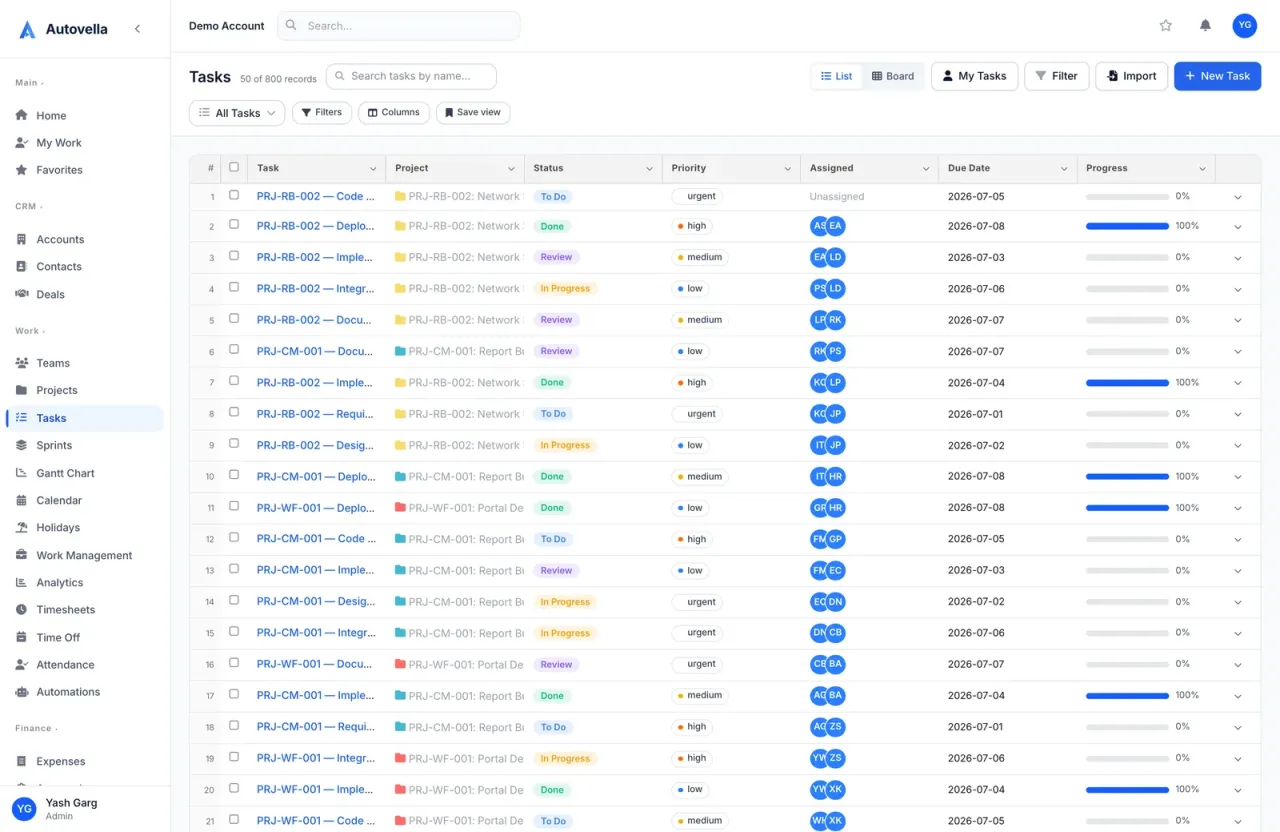
Creating and Assigning Tasks
Add a task from any view with the + New Task action, set a title, assignee, due date, and section. Tasks can be assigned to one primary owner plus additional watchers who get notified on updates without being responsible for completing the work.
Status is customizable per project, most teams use a version of To Do, In Progress, In Review, Done, but statuses can be renamed or extended to match a specific workflow, like adding a Blocked status for tasks waiting on a client.
Choosing Between Board, List, Calendar and Gantt
Board (Kanban) is best for visualizing work-in-progress and spotting bottlenecks, columns represent status and cards move across as work advances. List is best for a dense backlog you need to scan, sort, and bulk-edit quickly. Calendar is best for date-driven work like content schedules or client deliverables tied to specific days. Gantt is best for anything with real dependencies, showing the critical path and letting you drag to reschedule, with downstream tasks shifting automatically.
Because all four read the same task data, a project manager can plan the whole quarter in Gantt while the delivery team works day to day from the board, everyone sees the same tasks, just organized differently.
Subtasks and Dependencies
Subtasks break a larger task into smaller trackable steps without cluttering the main task list, useful for a task like "Launch campaign" that actually has five discrete steps underneath it. Subtasks can each have their own assignee and due date, and the parent task shows completion progress as a fraction.
Dependencies (in Gantt view) link tasks so one can't start until another finishes. Reschedule the upstream task and everything depending on it shifts automatically, this is what makes the critical path visible instead of something you have to calculate by hand.
Saved Views and Filters
- Save a filtered view (e.g. "My tasks due this week") so you don't rebuild the same filter daily
- Use custom statuses sparingly, three to six per project keeps a board readable
- Set due dates on every task, not just milestones, so calendar and Gantt views stay meaningful
- Review overdue tasks weekly using a saved "Overdue" filter across all your active projects
See boards, lists, calendar and Gantt on the same data
We'll walk through how your team can plan and work from whichever view fits the moment.
Frequently asked
Yes, subtask completion rolls up into the parent task's progress indicator, and both subtasks and parent tasks contribute to overall project completion percentage shown in dashboards and reports.
Yes, a task can depend on multiple upstream tasks and can itself block multiple downstream tasks. Gantt view shows all of these links so you can trace the full critical path, not just the immediate next step.
Yes, the default view is a personal preference, not a project-wide setting, so one person can work from the board while another works from the list, both looking at identical underlying task data.