A project in Autovella is more than a container for tasks, it's the record that connects delivery to the account it belongs to, the budget it's tracked against, and the time and expenses billed to it. Setting it up correctly at the start makes everything downstream, reporting, invoicing, resourcing, more accurate.
In this guide
Creating a new projectStructuring work with sections and custom fieldsSaving a project as a reusable templateTracking project healthFrequently asked questions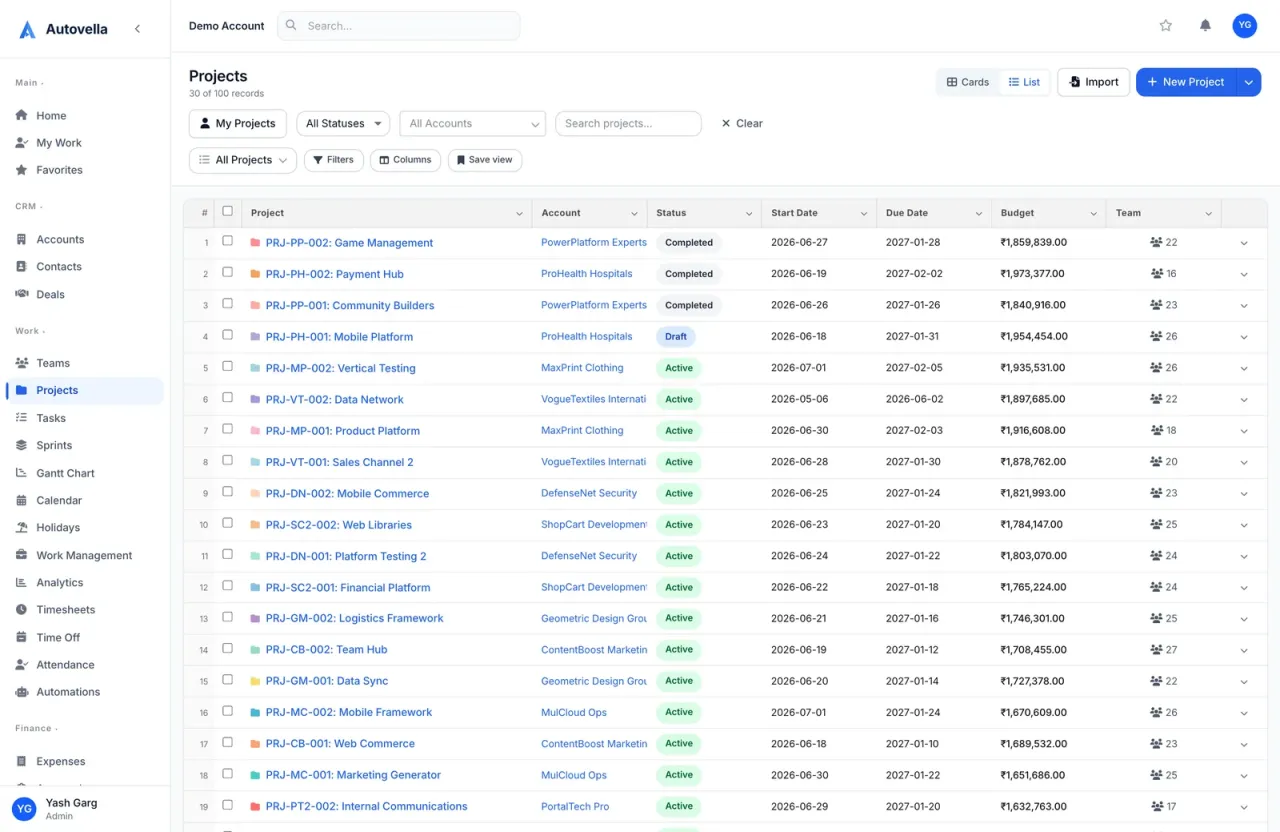
Creating a New Project
From Projects → New Project, set the linked account, project owner, start date, and budget. If the project came from a won CRM deal, most of this is already filled in from the conversion, see Managing Accounts, Contacts and Deals.
Choose a default view for the team, Kanban board for visual work-in-progress, list for a dense task backlog, calendar for date-driven work, or Gantt for anything with dependencies. All four views read from the same task data, so switching later doesn't require rebuilding anything, it's purely a display choice.
Structuring Work With Sections and Custom Fields
Inside a project, group tasks into sections (for example, Discovery, Build, Review, Launch) so the board or list reflects your actual delivery phases instead of one flat pile of tasks. Sections can be collapsed, reordered, and reused as a pattern across similar projects.
Custom fields let you track project- or task-specific data Autovella doesn't model by default, a client-specific priority scale, a compliance checkbox, an external ticket reference. Fields can be added at the project level and appear on every task within it.
Saving a Project as a Reusable Template
If you run the same kind of engagement repeatedly, a standard onboarding, a recurring audit, a fixed-scope build, build it once, then save it as a template from the project's settings menu. New projects created from that template inherit its sections, tasks, custom fields, and default assignees automatically.
Templates are where the real time savings show up. A firm running a dozen similar onboarding projects a month can cut setup time from an hour of manual task creation to a single click, with nothing forgotten because the template already has it.
Tracking Project Health
- Set a budget on every project so time and expenses can be compared against it in real time
- Use task dependencies in Gantt view to see what a delay actually pushes downstream
- Review the project's burndown or completion percentage weekly, not just at milestones
- Archive completed projects instead of deleting them, historical data feeds profitability reporting
See Analytics and Reports for how project health rolls up into firm-wide dashboards.
See project templates in action
We'll show you how to turn your team's repeatable engagement into a one-click template.
Frequently asked
Yes, at any time. All views are built from the same underlying task data, so switching is a display preference, not a data migration, and different team members can even use different default views for the same project.
No, custom fields can be added to a project at any point, and existing tasks will show the new field ready to be filled in. Most teams add fields as a specific need comes up rather than trying to anticipate every one in advance.
Templates are independent snapshots, editing the original project afterward doesn't change the saved template. To update a template, open it directly from Settings → Project Templates and edit it there.