Use Teams to group people (a squad, a department, a delivery pod) and Org Chart to see reporting lines. Teams are created and edited on the Teams page. Reporting lines come from each person's Manager field and are shown, and editable by drag and drop, on the Org Chart. Both are in the Work section of the sidebar.
In this guide
How do I create a team in Autovella?How do I add or remove team members?What does the team page and its Reports tab show?How do teams give people access to projects?How do I use the Org Chart and set reporting lines?Why do reporting lines matter?Frequently asked questions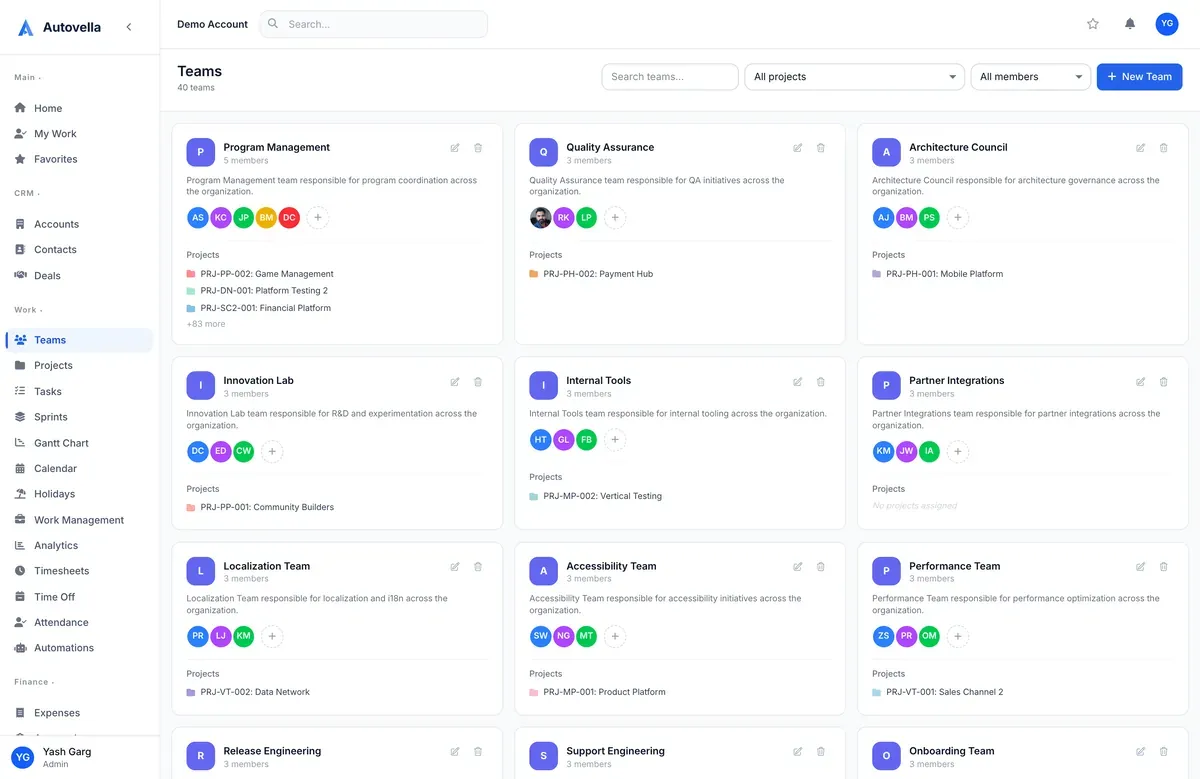
How do I create a team in Autovella?
- Open Teams in the sidebar.
- Click New Team.
- Enter a Team Name (required, for example Frontend Squad or QA Team) and an optional Description.
- Optionally upload a Team Avatar, choose a Team Color, and pick a Team Lead and a Team Manager.
- Click save. A Team created! message confirms it.
You need create permission on Teams. By default admins and managers have full access, employees can read and update, and contractors can only view (see Roles, Permissions and Team Sharing). If you pick a lead or manager, they are automatically added as members with the role lead or manager.
The Teams page lets you search teams and filter by project or member. Each team card shows its member avatars, lead, manager and the projects it is assigned to.
How do I add or remove team members?
There are two places:
- On the Teams page, click the manage members icon on a team card to open Manage Members. Choose a user, choose a role and add them, or remove existing members from the Current Members list.
- Open the team (click its name) and use Add Member in the header. In Add Team Member pick the Member and a Role in Team.
The team role choices are member, lead, manager, developer, designer, qa and devops. This is a label that describes the person's function in the team; it does not change their access to records. Removing a member, if they were the team lead, also clears the lead field. To edit a team's name, colour, lead or manager later, use the edit (pencil) icon, or Edit Team on the team page. Only people with teams update access, or the person who created the team, can change it.
Deleting a team (trash icon, then confirm) does not delete any projects.
What does the team page and its Reports tab show?
The team page has two tabs.
- Overview: the member list plus a Details panel with colour, created by and date, modified by and date, team lead, team manager and description, and a team photo you can change.
- Reports: a report scoped to the team's projects: projects (and how many are active), tasks done, overdue tasks, hours logged with billable percentage, budget used and invoiced amounts, followed by tasks by status, hours by member and hours by project.
Admins and managers also see a Profitability strip with revenue, labor cost and gross margin. If no cost rates are set, it tells you profitability is unavailable. Set rates under Users and Company Settings. For wider reporting see Analytics and Reports.
How do teams give people access to projects?
Teams are a convenient way to bring a whole group onto work at once. A project can be shared with one or more teams, and everyone on the team gets the access you choose. Sharing is covered step by step in Sharing Projects and Guest Links and the access model in How Access Works.
Team membership by itself is not a security boundary: what someone sees is still driven by their role, ownership, project membership and sharing.
How do I use the Org Chart and set reporting lines?
Open Org Chart in the sidebar. It draws a tree from each person's Manager. Each card shows the name, role badge and, for managers, a button such as "3 direct, 8 total" that collapses or expands their reports.
- Use Find a person or role to search. Matches are highlighted and their managers expand automatically.
- Use Expand all and Collapse all for a quick overview.
- Click a name to open that person.
Changing who reports to whom
There are two ways:
- Drag and drop: if you have Users update permission, drag a person's card onto their new manager. Confirm the Change manager prompt.
- From the user: in Settings, Users & Access, Users, open the person, click Edit User and set Manager.
A person cannot be their own manager, and Autovella refuses an assignment that would create a loop (A reports to B who reports to A). If no reporting lines exist yet, the chart tells you to drag people onto managers or set a manager on each profile.
Why do reporting lines matter?
Reporting lines do more than draw a picture. They decide which timesheets, expenses and time off a person sees by default (own, direct reports or the full reporting chain, depending on their role settings) and who can approve for whom. Read Approvals for Timesheets, Expenses and Time Off before you roll out approvals, and set a manager on every user first.
- Set a Manager on every user, starting from the top of the organization
- Create one team per delivery group, with a lead
- Use the Org Chart to spot people who have no manager
People missing from the chart? The chart shows active users that you are allowed to see. Inactive users are not shown, and anyone whose manager you cannot see appears as a top-level card.
Frequently asked questions
Both are optional people you choose on a team and both are added to the team as members. They are descriptive roles shown on the team card and team page, and they do not change what records those people can access.
Anyone whose role grants Teams create or update access. By default that is admins and managers for full control and employees for read and update. The person who created a team can also edit it.
No. Autovella confirms that deleting a team will not delete projects.
Changing reporting lines by drag and drop requires Users update permission. Without it you can still view and search the chart.
From the Manager field on each user. Set it when you add a user or later under Settings, Users & Access, Users.