The Autovella Dashboard is the first page you see after signing in. It greets you by name and shows KPI cards, charts and panels built from the data you are allowed to see. Most cards are clickable and take you to the matching list. Administrators decide which widgets each role gets under Setup → Customization → Dashboards.
In this guide
What does the Autovella dashboard show?What does each KPI card mean?Which charts and panels are on the dashboard?Why do I see different widgets than a colleague?How do administrators configure dashboards by role?How can I get more from my dashboard?Frequently asked questions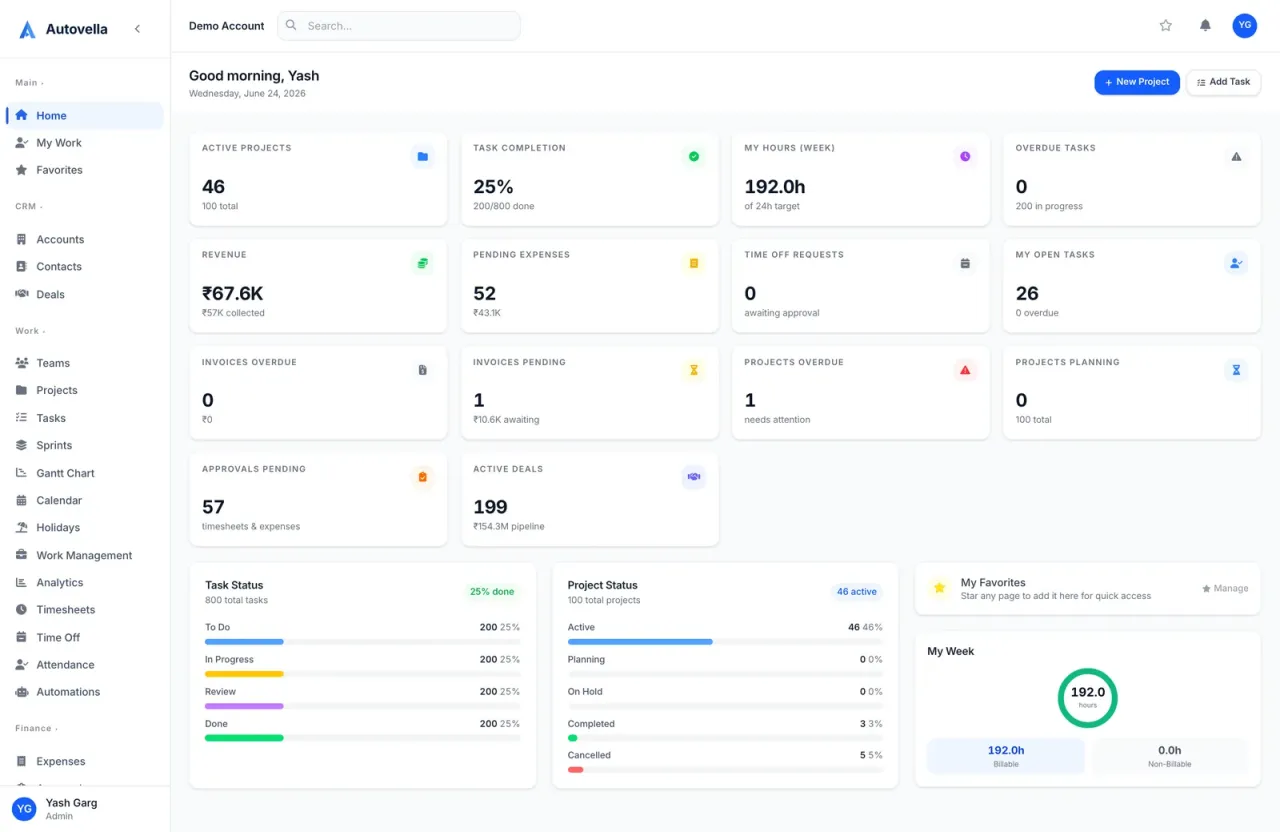
What does the Autovella dashboard show?
At the top you see a greeting, today's date and two shortcuts, New Project and Add Task, shown only if your role can reach those pages. Below that the dashboard is made of three kinds of widget:
- KPI cards. A single headline number with a short sub-line. Click a card to open the related list, already filtered where it makes sense.
- Charts. Visual breakdowns of tasks, projects, invoices, deals and your own week.
- Panels. Short lists such as My Tasks, Recent Projects and who is away today.
If you have favorites, a My Favorites strip appears with a Manage link. If you have none yet it invites you to star a page. See My Work, Search and Favorites.
All numbers are limited to records you have access to, so two people can see different totals on the same dashboard. Finance figures are only filled in for roles with finance access.
What does each KPI card mean?
These are all the KPI cards Autovella can show. Which ones you see depends on your role and your administrator's settings.
Work and delivery
- Active Projects shows how many projects are active and how many exist in total. It opens Projects filtered to active.
- Projects Overdue counts projects past their due date. Projects Planning counts projects still in planning.
- Task Completion shows the percentage of tasks done and the done-over-total count.
- Overdue Tasks counts late tasks and shows how many are in progress. It turns red when anything is overdue.
- My Open Tasks shows your own open tasks and how many of them are overdue. It opens My Work.
Time and leave
- My Hours (Week) shows the hours you have logged this week against your weekly target. Approved leave and holidays count towards the week. See Time Tracking and Timesheets.
- Time Off Requests counts pending requests awaiting approval.
Money and approvals
- Pending Expenses shows how many expenses are pending and their total value.
- Revenue shows the total invoiced and how much has been collected.
- Invoices Overdue and Invoices Pending show counts and amounts for late and sent-but-unpaid invoices.
- Approvals Pending counts timesheets and expenses waiting for a decision. See Approvals for Timesheets, Expenses and Time Off.
- Active Deals shows open deals and the pipeline value.
Money amounts use your organization's default currency and are shown in a short form such as thousands.
Which charts and panels are on the dashboard?
Charts
- Task Status and Project Status break work down by status, using your organization's own status names and colors. Anything that does not match a configured status is grouped as Other.
- My Week shows your hours for the current week, including a Billable figure. If nothing is logged it links straight to Timesheets.
- Invoice Status breaks invoices down by status.
- Deal Pipeline breaks deals down by stage.
Panels
- My Tasks lists your open tasks. Click one to open it, or choose View all for My Work.
- Quick Actions offers shortcuts such as Log Time, Add Expense, Request Leave, New Invoice, New Account and Reports. Only the actions your role may perform appear.
- Recent Projects lists your latest projects with an All link to the full list.
- Unapproved Timesheets shows submitted timesheets waiting for approval, with a count and a View all link to Approvals.
- Upcoming Holidays links to the holiday calendar.
- On Leave Today and Working Remotely Today show who is away or remote, and link to Attendance filtered to today. If nobody is, you see a friendly message instead.
The On Leave and Remote panels draw on attendance data. See Time Off, Holidays and Attendance.
See your whole business on one screen
Explore the Autovella dashboard and tailor it for every role in your team.
Why do I see different widgets than a colleague?
Two things decide what appears. First, some widgets are restricted by role no matter what an administrator chooses:
- Admin and Finance only: Revenue, Invoices Overdue, Invoices Pending and the Invoice Status chart.
- Admin, Manager and Finance: Approvals Pending, Active Deals and the Deal Pipeline chart.
Second, your administrator can switch the whole dashboard, or individual widgets, off for a role. If your role has the dashboard turned off you will see No dashboard configured with a note that your administrator has not enabled one yet. You can still use the main menu to reach everything else.
Underneath, your data scope also matters. For example, a team member sees counts for projects they can access, not the whole company. See How Access Works.
How do administrators configure dashboards by role?
Open the avatar menu, choose Setup, then under Customization click Dashboards. You will see one card per role, including system roles and any custom roles you created.
- Use the toggle on a role's card to turn that role's whole dashboard on or off. When off, the card reads Dashboard hidden and nothing is loaded for that role.
- While a role's dashboard is on, tick or untick individual widgets. They are grouped under KPIs, Charts and Panels.
- Changes save automatically. Users see them the next time the dashboard loads.
Widgets that are restricted by role show a note such as (admin/finance only) and are greyed out for other roles, because enabling them would have no effect.
Defaults. Until you change anything, every role has the dashboard on with every widget it is eligible for. Switching a widget off also stops its data from being fetched, which keeps the page quick.
Role names and their permissions are managed in Roles, Permissions and Team Sharing. Customization settings generally require administrator access.
How can I get more from my dashboard?
- Treat the red cards, Overdue Tasks, Projects Overdue and Invoices Overdue, as your daily to-do triage and click straight through.
- Managers can start the week with Approvals Pending and Unapproved Timesheets so nobody's pay or invoicing is held up.
- Check My Week on Thursday to see whether you are on track to meet your target.
- For trends, drill-downs and exports, go to Reports from Quick Actions. See Analytics and Reports.
Frequently asked questions
Your administrator has turned the dashboard off for your role. They can switch it back on in Setup under Customization, then Dashboards. You can keep working from the main menu in the meantime.
Individual users cannot hide widgets themselves. An administrator can untick the widget for your role under Setup, Customization, Dashboards, and the change applies to everyone with that role.
Revenue and the other invoice widgets are limited to the Admin and Finance roles. They never render for other roles even if enabled.
Admin, Manager and Finance roles can see them, provided the administrator has left them switched on.
Amounts use your organization's default currency and are shown in a short form.
No. The dashboard is scoped to the records your role and sharing settings let you see, so totals can differ between users.