Open Sprints in the sidebar to plan agile work. A sprint is a time-boxed container that can pull tasks from any project in your organization. You create a sprint, drag tasks from the Backlog into it, Start sprint, work the sprint board, and finish with Complete sprint, choosing where unfinished tasks go. Burndown and velocity charts show how the team is doing.
In this guide
What you need before you plan a sprintHow to create a sprintHow to add tasks to a sprint from the backlogHow to start a sprintHow to read the burndown chart and sprint KPIsHow to complete a sprint and handle unfinished tasksFrequently asked questions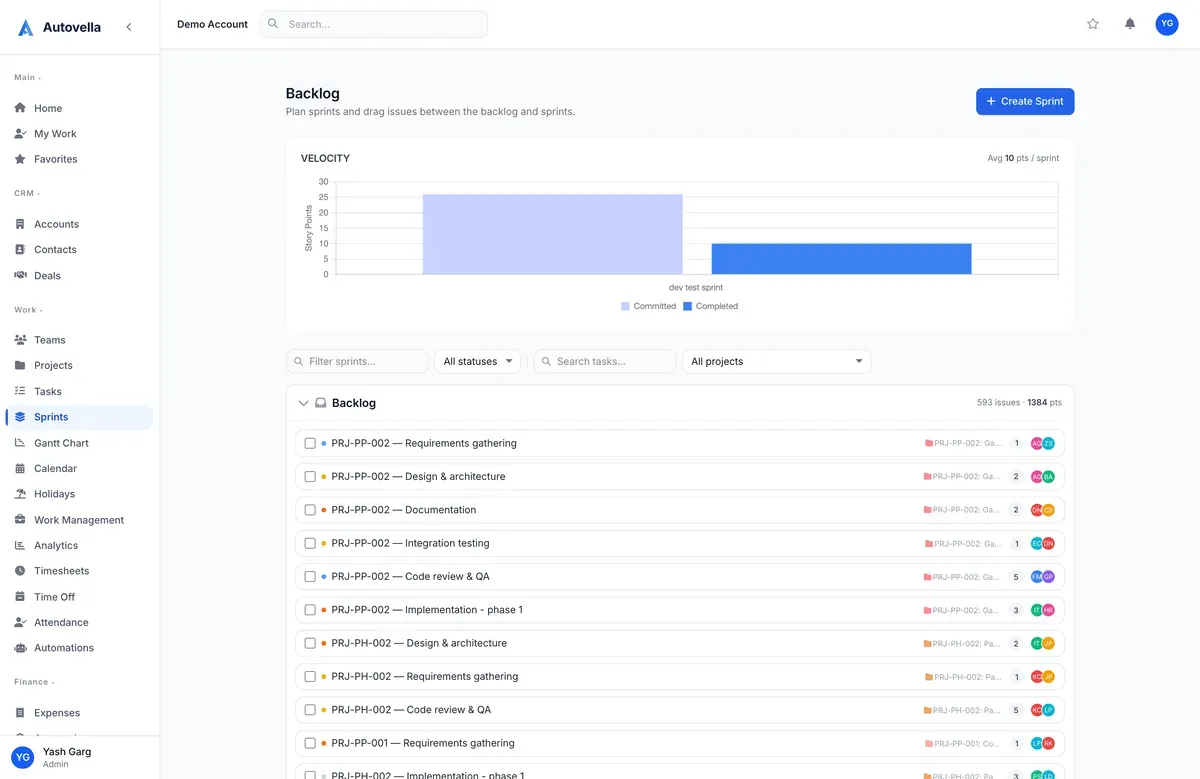
What you need before you plan a sprint
Sprints are a module that your organization can have switched on or off, and they build on Projects & Tasks. If you do not see Sprints in the sidebar under the Work group, ask your administrator to confirm that the Agile / Sprints module is enabled for your organization and that your role can read sprints.
What you can do on the page depends on your role permissions:
- Create Sprint needs create permission on Sprints.
- Start sprint, Complete sprint and editing a sprint need update permission on Sprints.
- Deleting a sprint needs delete permission on Sprints.
- Moving tasks between the backlog and sprints needs update permission on Tasks, because you are changing the task, not the sprint.
By default, Admins and Managers have full access, Employees can read, create and edit sprints but not delete them, and Contractors, Finance and Customers are limited to viewing or have no access. Your administrator can change this with custom roles, see Roles, permissions and team sharing.
Planning works best when tasks already exist and carry Story Points. Open any task, fill in the Story Points field (a whole number, zero or more), and the totals and charts described below start working. If the field is missing from your task form, your administrator may have hidden it through field-level permissions or page layouts.
How to create a sprint
- Click Sprints in the sidebar. The page opens as Backlog, showing sprint lanes with your backlog below them.
- Click Create Sprint. The New Sprint form opens.
- Enter a Name (required), for example Sprint 4.
- Optionally add a Goal, a one-line statement of what the sprint should achieve.
- Optionally set a Start Date and End Date. You can also leave these blank and set them when you start the sprint.
- Use Visible to if only certain people should see the sprint. Leave it empty and everyone who can access sprints sees it. If you pick people, only those users, the sprint creator and people with view-all or modify-all project access can see it.
- Save. The new sprint appears with the status Planning.
Sprint dates cannot overlap. Autovella refuses a sprint whose start and end dates overlap another sprint that has both dates set, and the error names the clashing sprint and its dates. Pick back-to-back dates, for example the next sprint starting the day after the previous one ends.
A sprint's status moves through three stages: Planning, Active and Completed. You can use the status filter at the top of the page (All statuses, Active, Planning, Completed) and the Filter sprints... box to focus on one lane.
How to add tasks to a sprint from the backlog
The Backlog lane lists every task that is not in a sprint and is not yet completed. Each sprint has its own lane. There are several ways to move work around:
- Drag and drop. Drag a task card from the backlog into a sprint lane. Dropping onto an empty lane works too (it says Drag issues here to plan this sprint). Dragging within a lane reorders the cards, and that order is saved.
- Select several at once. Tick the checkbox on a card, Ctrl or Cmd-click to add individual cards, or Shift-click to select a range. A bar appears at the bottom with a Move to... menu (Backlog or any open sprint), a New sprint button that creates a sprint and moves the selection into it, and Clear.
- Right-click a card. The menu lets you move the issue to the Backlog, to an open sprint, or to a new sprint.
- From inside a sprint. Open the sprint and click Add Tasks. Tick the backlog tasks you want (project name and points are shown) and click Add.
- From a single task. The task side panel has a Sprint field. Change it to move the task to another sprint or back to the backlog without leaving the task.
Each lane header shows its issue count and total story points, so you can compare the sprint's load with what the team normally completes. Use Search tasks... and All projects to filter the cards when the backlog is long.
You only see tasks you are allowed to see. If a task belongs to a project you cannot access and is not assigned to you, it will not appear in the sprint for you, even though other people see it.
Plan your next sprint in minutes
Start a free trial and move your backlog into a sprint board.
How to start a sprint
- In the sprint's lane, click Start sprint (visible while the sprint is in Planning).
- In the Start Sprint window, choose a Duration: 1 week, 2 weeks (the default), 3 weeks, 4 weeks or Custom.
- Check the Start Date. The End Date is calculated from the duration, or you can type your own date by choosing Custom.
- Edit the Sprint Goal if you wish, then click Start.
The sprint turns Active. Active sprints are expanded by default; planning and completed lanes start collapsed the first time you open the page, and Autovella remembers which lanes you collapse. You can edit the name, goal, dates and audience at any time with the pencil icon in the lane menu.
Click the sprint name to open its detail page. The header shows the number of Tasks, total Story Points and the Complete percentage with a progress bar. The detail page has four tabs:
- Board: tasks grouped by status as columns, with filters for search, Mine (your tasks), assignees and priority, plus a swimlane selector.
- Backlog: the sprint's tasks in list form.
- Reports: KPIs and the burndown chart.
- Board Settings: WIP limits and the default swimlane.
How to read the burndown chart and sprint KPIs
Open a sprint and click the Reports tab.
KPI cards
- Tasks Completed with a completion rate.
- Story Points done against committed points.
- Avg Cycle Time: mean days from creating a task to completing it.
- Throughput: tasks completed per day.
- Days Remaining (active sprints), Sprint Duration and Days Elapsed.
For sprints that have dates, a banner shows whether delivery is On Track, At Risk or Behind while active, and Completed On Time or Completed Late once finished. At Risk and Behind compare your task completion rate with how much of the sprint window has passed.
Burndown
The burndown chart plots Remaining story points against an Ideal straight line from total points on day one to zero on the last day. The Remaining line stops at today. If the blue line sits above the ideal line, the sprint is carrying more work than planned for that day.
If the chart says there is not enough data. The burndown needs story points on the sprint's tasks and at least some completed work. Add points, set the sprint's start and end dates for an accurate timeline, and complete a few tasks. Very long sprints show at most 120 days.
Board Settings
On Board Settings you can cap the number of tasks per status column (WIP Limits, 1 to 99, blank means no limit) and pick a Default Swimlane: None, By Assignee or By Priority. These two settings are saved in your own browser, so they apply on your device and are not shared with teammates.
How to complete a sprint and handle unfinished tasks
- On the Sprints page, click Complete sprint on the active sprint's lane.
- The Complete Sprint window shows how many tasks are Completed and how many are Incomplete.
- If any are incomplete, choose where they go under Move incomplete issue(s) to: the Backlog or another open sprint (planning or active).
- Click Complete. A message confirms how many were done and how many were moved.
Completed sprints are grouped under Completed sprints at the bottom of the page. A sprint's finished tasks stay attached to it, which keeps its reports accurate.
Use the Complete window, not the detail-page button, when work is unfinished. The Complete Sprint button on a sprint's detail page changes the status directly and is refused with a message such as Cannot mark sprint complete: 3 task(s) are still incomplete. Finish or move those tasks first, or use the Complete sprint button on the Sprints page, which relocates them for you. If you complete a sprint by mistake, the detail page offers Reopen, which sets it back to Active.
Velocity
Once at least one sprint is completed, a Velocity chart appears at the top of the Sprints page. For recent completed sprints (up to six by default) it compares Committed points, the points of the tasks in the sprint, with Completed points, and shows the average completed points per sprint. Because unfinished tasks are moved out when you complete a sprint, committed reflects the tasks that remained in it at completion. Use the average as a starting point for how many points to plan next time.
Deleting a sprint
Use the trash icon on a sprint and confirm Delete Sprint. The tasks are not deleted, they simply return to the backlog. The sprint itself is removed for good, so complete it instead if you want to keep its history.
Frequently asked questions
Sprints is a module that is switched on per organization and needs your role to have read access to Sprints. Ask your administrator to check that the Agile / Sprints module is enabled and that your role includes it.
Yes. Sprints are organization-wide, so one sprint can hold tasks from any project you can access. Each card shows its project name so you can tell them apart.
Two sprints that both have start and end dates cannot cover the same days. The message names the conflicting sprint and its dates. Change your sprint's dates so they begin after that sprint ends.
The chart needs story points on the sprint's tasks and some completed work. Add story points to tasks, set the sprint's start and end dates, and mark tasks done to see the Remaining line move.
In the Complete Sprint window you choose to move them to the Backlog or to another open sprint. Completed tasks stay in the sprint so its reports stay accurate.
No. WIP limits and the default swimlane on a sprint's Board Settings tab are stored in your own browser, so each person sets their own.