Open Work Management in the sidebar to plan and track team workload. For every active person it compares the hours booked on their tasks with their capacity (8 hours per working day, reduced by holidays and approved time off) and labels them Available, Active, Busy or Overloaded. Switch to the Schedule view to assign hours to tasks day by day. This article also covers each person's workload page, the Org Chart and how Teams fit in.
In this guide
Where to find the resource planner and who can use itHow to read the Overview and utilizationHow to filter the planner to the people you needHow to schedule hours for each personHow to see one person's workload and logged hoursHow the Org Chart and Teams support workload planningFrequently asked questions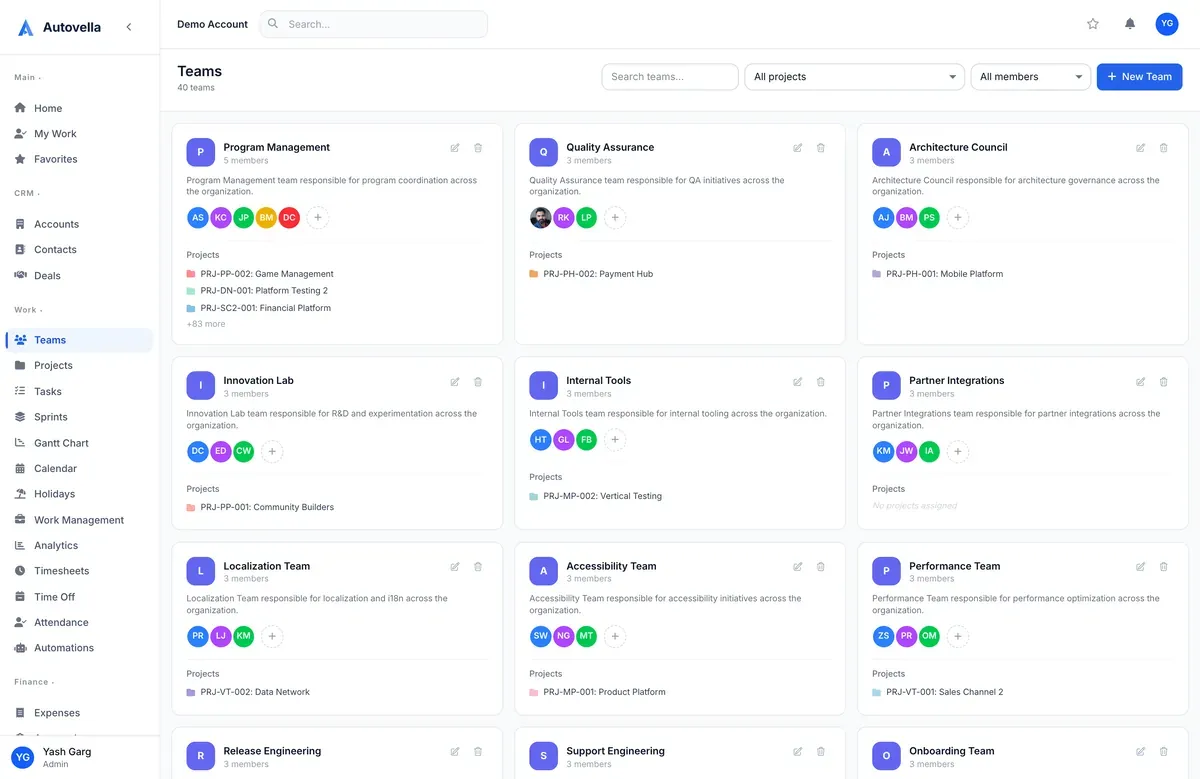
Where to find the resource planner and who can use it
The planner is called Work Management and sits in the Work group of the sidebar, next to Holidays and Analytics. The page header reads Plan and track team workload.
By default it is available to Admins, Managers and Employees. Contractors, Finance and Customer roles do not get it in their menu, and an administrator can adjust access through roles. See Roles, permissions and team sharing.
The planner pulls together four things you already maintain elsewhere:
- People: every active user. Deactivated users are left out.
- Tasks: assigned people, start and due dates, status and estimated hours. You only see tasks you are allowed to see.
- Holidays: see Time off, holidays and attendance.
- Approved time off: pending or rejected requests are not counted.
Saving the schedule grid, and assigning people to tasks, follows task permissions. If you can only view tasks, you can look at the planner but you cannot change schedules or assignments.
How to read the Overview and utilization
The planner opens in Overview, a grid of cards, one per person, sorted with the most heavily loaded first.
Choose the period
Use the date range selector to pick Day, Week, Month or Quarter, then the previous and next arrows and Today to move around. Autovella remembers your last view and range on your device.
The summary bar
The bar under the header shows the period, how many people are Active out of the total, overall Utilisation, Scheduled hours, Estimated hours, total Capacity, and a red Overloaded count when anyone is over capacity.
How workload and capacity are calculated
- Workload hours are the hours scheduled for the person in the period. If nothing is scheduled, Autovella falls back to the total estimated hours of their tasks that overlap the period. Tasks with no dates are included.
- Capacity is 8 hours for each Monday to Friday in the period. Weekends are not counted.
- A holiday that applies to the person, or a day of approved full-day leave, removes 8 hours of capacity. Approved half-day leave removes 4.
- Utilisation is workload hours divided by capacity.
Each card shows a status badge based on utilisation:
- Available: nothing booked (0%).
- Active: some work, up to 80%.
- Busy: above 80% up to 100%.
- Overloaded: above 100%.
In Day and Week ranges the card has a strip of day markers: a holiday shows as green with an N hol badge and time off shows in orange. Month and Quarter ranges use a compact strip where blue is a working day, green a holiday and orange time off. The card lists up to six tasks with their estimates and a +N more link. Click a task to open it, or click a person's name to open their workload page.
Capacity is a standard 8-hour day. The planner does not read individual working-hour patterns or part-time contracts, so someone who works fewer hours will look less loaded than they are. Treat the percentage as a guide and compare it with what you know about the person.
How to filter the planner to the people you need
Above the cards you will find these filters (on a phone, tap the filter button first):
- Search members... to find a person by name.
- All Projects to show only people with tasks in a particular project, which is the quickest way to check a project's staffing.
- All Statuses to limit tasks to one status, such as In Progress.
- All Utilisation, with options Available, Active, Busy and Overloaded. Choose Overloaded for a quick list of people to rebalance.
- Show completed. Completed tasks, and tasks in completed projects, are hidden by default because they need no planning. Tick the box or pick a status explicitly to include them.
The planner lists people, not teams, so there is no team filter. To plan for one team, filter by the project that team works on, or use the search box. Teams themselves are covered below.
See your team's capacity at a glance
Start a free trial and plan workload before it becomes overload.
How to schedule hours for each person
Click Schedule next to Overview to plan the week in detail. This view is only available when the range is Day or Week. In Month or Quarter the button is greyed out with a note that schedule editing needs Day or Week.
- Each person is a row with a Monday to Sunday grid and a Total. Expand a person to see their tasks, or use Expand All and Collapse All.
- Click into a day cell on a task row and type the hours (0 to 24, in steps of 0.5). Days with a holiday or time off are marked so you can avoid them.
- The person's rollup row updates as you type, so you can see at a glance whether the day or week exceeds capacity.
- Auto-save is on by default and saves a couple of seconds after you stop typing. Switch it off and a Save button appears. The page says Nothing to save if you click it with no changes.
Assign a task to someone
- In the Schedule view, click the + (Assign task) icon on the person's row.
- In the Assign Task window, use Search tasks and Filter by project to find the task, then click Assign.
- Autovella adds the person to that task's assignees and confirms with Task assigned. Existing assignees stay on the task.
Scheduled hours then take priority over estimates in the Overview, which is why the Overview and Schedule views always agree.
Tip: fill in estimated hours first. Even if you never use the Schedule grid, putting Estimated Hours on tasks makes Overview utilisation meaningful. People with tasks but no estimates and no schedule will look Available.
How to see one person's workload and logged hours
Click a person's name in the planner to open their page (breadcrumb People). Choose a period: Last 7 days, Last 30 days, Last 90 days, Month to date, Quarter to date or Year to date. The page shows:
- Key figures: Hours Logged, Billable percentage, Tasks Done against assigned tasks, Time Off (days) and, when relevant, Overdue Tasks.
- Billable vs Non-Billable Hours and a Weekly Hours Trend chart.
- Time by Project, a Task Summary (Total Assigned, Completed, Open, Overdue) and a Time Off summary.
This page uses logged time from timesheets, so it shows what actually happened, while the planner shows what is planned. Admins and Managers (or anyone given the View Team Analytics permission) can open anyone's page. Everyone else can only view their own and will see a permission message for others.
How the Org Chart and Teams support workload planning
Org Chart
Open Org Chart in the sidebar to see reporting lines. The chart is built from each person's Manager set on their user profile. Use Find a person or role... to locate someone and Expand all or Collapse all to open the tree.
- If you have permission to update users, drag a person onto their manager and confirm Change manager to update the reporting line. Autovella refuses loops, such as A reporting to B who reports to A.
- You only see people you could already find in the staff directory. Someone whose manager is hidden from you appears as a top-level box.
- Reporting lines also decide whose timesheets, expenses and time off a manager can see and approve, so keep them current.
Teams
Open Teams to group people. Click New Team and enter a Team Name (required), an optional Description, a Team Lead, a Team Manager and a colour, then add members from the team page. Teams are mainly used to share records with a whole group at once (see Sharing projects and guest links) and to compare team performance in Analytics and reports.
Frequently asked questions
Capacity is 8 hours for each Monday to Friday in the selected period. A holiday or day of approved full-day leave removes 8 hours, and approved half-day leave removes 4. Weekends are not counted.
They describe utilisation, which is workload hours divided by capacity. Available is 0%, Active is up to 80%, Busy is above 80% up to 100%, and Overloaded is above 100%.
Workload comes from scheduled hours, or estimated hours when nothing is scheduled. If their tasks have no estimated hours and nothing is scheduled in the period, there is nothing to count. Add estimates or schedule hours.
Schedule editing only works in the Day and Week ranges. Switch the date range selector from Month or Quarter to Week and the button becomes available.
No. Only approved time off and applicable holidays reduce capacity, so approve requests promptly to keep the planner accurate.
Admins and Managers, or users with the View Team Analytics permission, can open any person's workload page. Other users can only see their own.