Autovella works on phones and tablets through your web browser. There is no separate app to download. On a screen narrower than 768 pixels the layout changes: the sidebar becomes a slide-out menu, a bottom navigation bar gives one-tap access to Home, Projects, Tasks and Contacts, list pages tuck their filters behind a Filters button, and wide tables scroll sideways.
In this guide
How do I use Autovella on my phone?How does navigation work on a small screen?Where did the filters go on list pages?How do tables, forms and pop-ups behave on mobile?What jobs are best done from a phone?What if something looks wrong on my phone?Frequently asked questions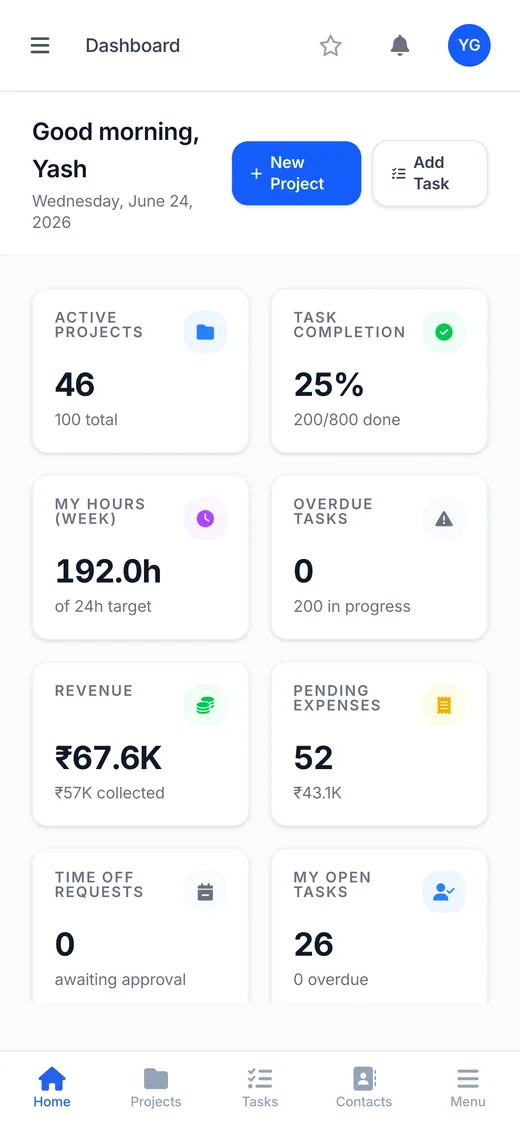
How do I use Autovella on my phone?
Open your organization's Autovella address in any modern mobile browser (Safari, Chrome and similar) and sign in as usual with your Username or email and Password. Everything you can do on a computer is the same product, laid out for a small screen, and you see exactly the same menu items and records your role allows. See Quick start by role if you are unsure what to expect.
Autovella is a responsive website, not a native app, so there is nothing to install from an app store. If you want one-tap access, use your browser's own option to add the page to your home screen, or star it in Autovella's Favorites.
The same rules apply as on desktop. You are signed out after a period of inactivity (touching or scrolling the screen counts as activity), and you can tick Remember me on your own device only. Tablets wider than 768 pixels show the full desktop layout with the sidebar always visible.
Where did the filters go on list pages?
On a phone, list pages would be crowded if every filter stayed on screen. Instead, pages such as Tasks, Projects, Accounts, Contacts, Expenses, Invoices, Time Off, Attendance, Holidays, Sprints and the Audit Log show a small Filters button (a funnel icon) in the page header.
- Tap the funnel button. The search box, dropdown filters and saved-view bar appear below the header, and the button highlights.
- Pick your filters or type in the search box.
- Tap the funnel again to hide the panel and get your screen space back.
The button exists only on small screens. On tablets and computers the filters are always visible. For filters you use often, create a saved view, see Saved views, filters and bulk actions.
The global Search... box in the header is shown on larger screens only, so on a phone use the search box on the list you are looking at, or open My Work for your own tasks.
See Autovella on your own device
Book a short demo and we will show you how your team can work from phones, tablets and desktops.
How do tables, forms and pop-ups behave on mobile?
- Tables scroll sideways. Lists such as invoices, accounts or the audit log keep a minimum width so columns stay readable, and you swipe left and right to see the rest instead of the page being squashed.
- Summary tiles stack. Tiles, such as the three tiles above your timesheet, drop into a single column.
- Forms open as pop-ups that fit the screen, for example New Project, so you can create records from your phone.
- Buttons are touch sized. The menu button and primary controls are at least 44 pixels tall, a common minimum for easy tapping.
Pages with a lot of horizontal information, such as the Gantt Chart, the resource planner in Work Management and wide report tables, are naturally easier to read on a tablet or computer. You can still open them on a phone and scroll.
What jobs are best done from a phone?
These everyday tasks suit a small screen:
- Check your day in My Work, tick tasks complete and change a status or priority. See My Work, Search and Favorites.
- Log time in Timesheets and press Submit Week when you are done. See Time tracking and timesheets.
- Check in and out on Attendance. If your admin set up office IP addresses, a phone on mobile data will normally be marked Remote rather than Present. See Time off, holidays and attendance.
- Request leave with New Request on Time Off.
- Log an expense and attach a photo of the receipt. See Tracking expenses.
- Approve timesheets, expenses and time off in Approvals if you are a manager or finance user.
- Read notifications from the bell and open the item behind them.
Bigger jobs, like importing CSV files, configuring roles or laying out a Gantt, are easier on a computer.
What if something looks wrong on my phone?
- Menu items missing. Refresh the page. If the item is still missing, your role or your organization's modules do not include it. See Troubleshooting common issues.
- Page seems cut off or cannot scroll. If the drawer was open, close it, because the page behind does not scroll while it is open.
- Cannot find the filters. Tap the funnel (Filters) button in the page header.
- Table columns hidden. Swipe the table sideways. In the list you can also choose which columns to show.
- Rotating the screen. Turn the phone sideways for wider tables and the timesheet grid.
- Receipt will not upload. Check the file is a supported type, no more than 10 MB, and that your organization has storage left. See Plans, storage and user limits.
Still stuck? Contact support with your device, browser and the page you were on.
Frequently asked questions
No. Autovella is a responsive web app that you open in your phone or tablet browser. The layout adapts to the screen, so there is nothing to install.
Tap the menu button at the top left of the header, or the Menu button on the bottom bar. The sidebar slides over the page and closes when you tap outside it or pick a page.
On small screens, list pages such as Tasks, Projects and Invoices show a funnel icon button in the header. Tap it to show or hide the search and filter controls.
Yes. Open Timesheets, enter hours in the weekly grid and tap Submit Week. Entries save automatically when you leave a cell.
The bottom bar has the same five buttons for everyone. If your role or organization does not include a page such as Contacts, you will see an Access Restricted message. Use Menu to reach your own pages.
The global Search box appears only on larger screens. On a phone, use the search box on the list you are viewing, or My Work for your own tasks.