Open Settings, Customization, Custom Fields. At the top of that tab are four editable lists: Task Statuses, Project Statuses, Expense Categories and Time Off Types. For each you can add, rename, recolour, reorder and remove entries, choose which one is the Default, and, for statuses, mark which ones count as Completed. Save each list with its own button.
In this guide
Where do I change task statuses, expense categories and time off types?How do I add or edit a status?How do I customize expense categories and time off types?What happens to existing records when I rename or remove an entry?Tips for designing a good status listFrequently asked questions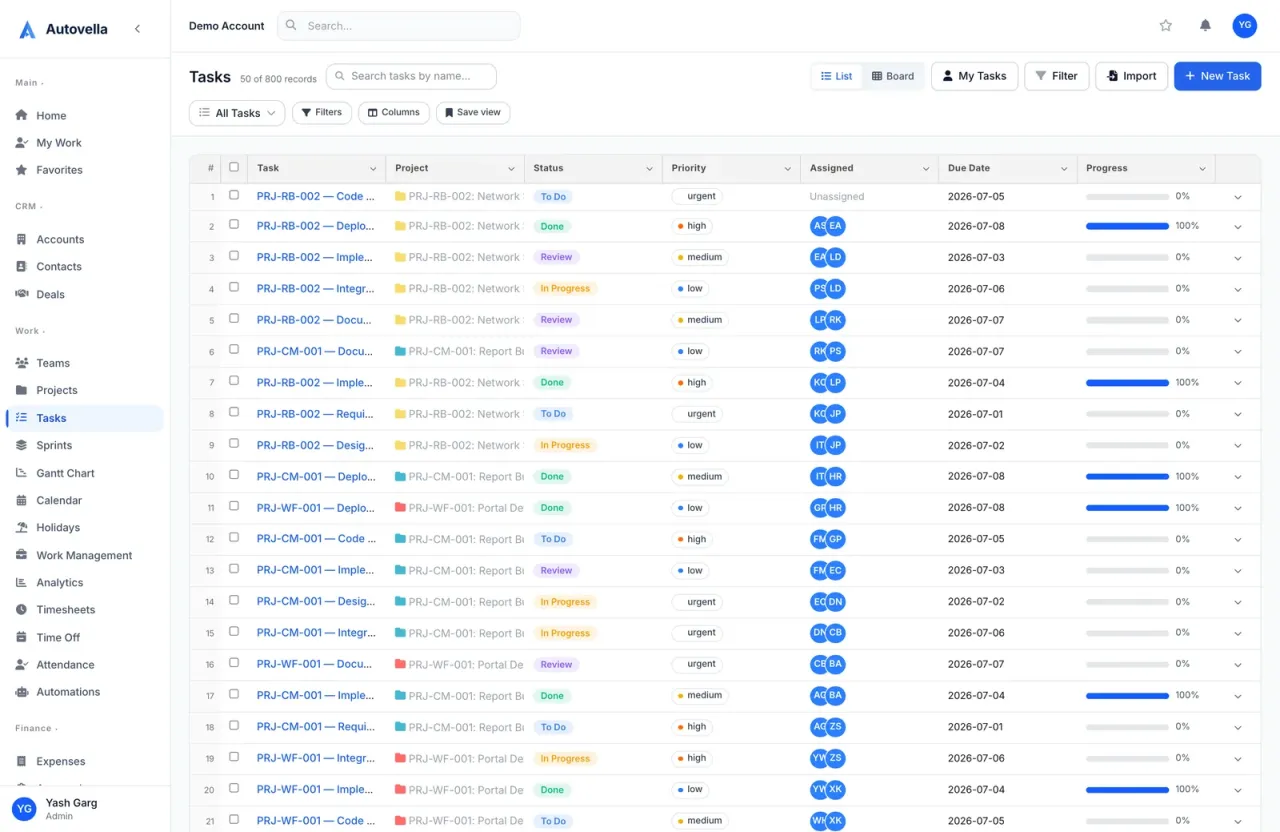
Where do I change task statuses, expense categories and time off types?
Open the avatar menu, choose Setup, then Customization, Custom Fields. The four list editors sit above the custom field sections (custom fields themselves are covered in Customizing Fields, Record Types and Layouts). You need update permission on Settings to add entries; by default that means admins.
Out of the box Autovella ships with these lists, which apply until you save your own:
- Task Statuses: To Do (default), In Progress, Review, Done (completed).
- Project Statuses: Draft, Active (default), On Hold, Completed (completed), Cancelled.
- Expense Categories: Travel, Meals, Software, Equipment, Office, Training, Communication.
- Time Off Types: Vacation, Sick, Personal, Bereavement, Parental, Other.
How do I add or edit a status?
- In Task Statuses or Project Statuses, click Add Status (or edit an existing row).
- Type the Label, the text people see, for example "Blocked".
- Pick a colour with the colour swatch. It is used on boards, badges and charts.
- Check the Value field. It is filled in automatically from the label (lowercase, spaces turned into dashes, so "Ready for QA" becomes ready-for-qa). You can edit it, but it must be unique in that list.
- Drag the grip handle on the left to reorder. Order is the order of columns, dropdowns and progress steps.
- Choose Default (the status given to new tasks or projects) and tick Completed on every status that means finished.
- Click Save Task Statuses or Save Project Statuses.
Only one default can exist. If you choose none, the first row becomes the default, and if several are selected only the first is kept. You must keep at least one status, and two rows cannot share the same value: Autovella shows an error asking you to change the Label or Value of one.
What the Completed flag controls
- Tasks in a completed status count as done in analytics and reports, sprint completion and project progress.
- A task moved to a completed status is set to 100% progress. In other statuses, progress is spaced evenly by position, from 0% for the first status up to 90% for the last open one (in the default list: To Do 0%, In Progress 45%, Review 90%).
- When you deactivate a user, only tasks not in a completed status are offered for reassignment.
How do I customize expense categories and time off types?
These work the same way as statuses, with different buttons.
- Expense Categories: click Add Category, enter a label (value fills in automatically), pick a colour if you like and mark one as Default so it is pre-selected on new expenses. Save with Save Expense Categories. The list feeds the category dropdown when people log an expense and the Category filter on the Expenses list. See Tracking Expenses.
- Time Off Types: click Add Type, label it (for example Study Leave or Work From Home), choose a colour and a Default, then Save Time Off Types. The list feeds the Type dropdown on new requests and the Type filter. See Time Off, Holidays and Attendance.
The Completed tick appears on every row, but it only has a meaning for task and project statuses.
Time off type notes. A request of type "Other" requires a reason, based on the value other, so keep that entry if you rely on this rule. The balance cards at the top of the Time Off page show Vacation, Sick and Personal; other types are still counted in totals but do not get their own card.
Make Autovella fit your process
Tailor statuses, categories and leave types to match how your team works.
What happens to existing records when I rename or remove an entry?
Records store an entry's Value, while people see its Label. That gives a simple rule of thumb:
- Changing a Label or colour is safe. Existing records show the new text.
- Changing or removing a Value that records already use is risky. Those records keep the old value, which no longer matches an entry in the list, so they can lose their label and colour and drop out of filters and charts.
- Instead of removing a status in use, rename it, or first move records to another status with a bulk edit (see Saved Views, Filters and Bulk Actions).
New tasks cannot be saved with a status that is not in your list. Task and project imports validate the Status column against your own list, so use your status values in the CSV. See Importing Data into Autovella.
Automation rules, saved views and scheduled reports refer to status values too. After you change a value, check your automation rules and scheduled reports.
Tips for designing a good status list
- Keep it short. Four to six task statuses make boards readable. Add "Blocked" or "In Testing" only if the team will really use them.
- Mark every finished state Completed (for example Done and Cancelled-style task states) or your progress and reports will undercount.
- Put the default first, so new work lands where people expect it.
- Use consistent colours: cool for waiting, warm for active, green for done.
- Save each list. Each card has its own Save button, and changes in one list are not saved by the button of another.
Troubleshooting
"Add at least one status". You removed every row, or left labels blank. Rows without a label are ignored.
"Two entries use the value...". Make the Label or Value of one row unique.
Cannot see Add Status. Your role lacks update access to Settings.
Frequently asked questions
Go to Settings, Customization, Custom Fields and edit the Task Statuses card. Change the Label, then click Save Task Statuses.
Tasks or projects in that status count as done in reports, progress and sprints. A task moved to a completed status also goes to 100% progress.
No. Only one entry in each list can be the default. If several are chosen, the first is kept.
Changing only the Label is safe because records store the Value. Changing the Value of a status that tasks already use can leave those tasks without a matching status.
Yes. Use Add Type under Time Off Types, give it a label and colour, and save. It then appears when people request time off.