Software teams use Autovella by keeping one backlog of tasks with Story Points, planning work into time-boxed Sprints, running a sprint board with WIP limits, and reading the burndown and velocity charts that update as tasks move. Sprints can pull tasks from any project, so product, platform and bug work share one backlog. This playbook covers setup, roles, automation and limits. For the product overview see Autovella for software teams.
In this guide
Who is this playbook for, and what does it solve?How do I map a software team onto Autovella?Which roles should engineers, leads and stakeholders have?What are the recommended setup steps?Which automations, integrations and reports help a dev team?What should a software team measure?What does Autovella not do for software teams?Frequently asked questions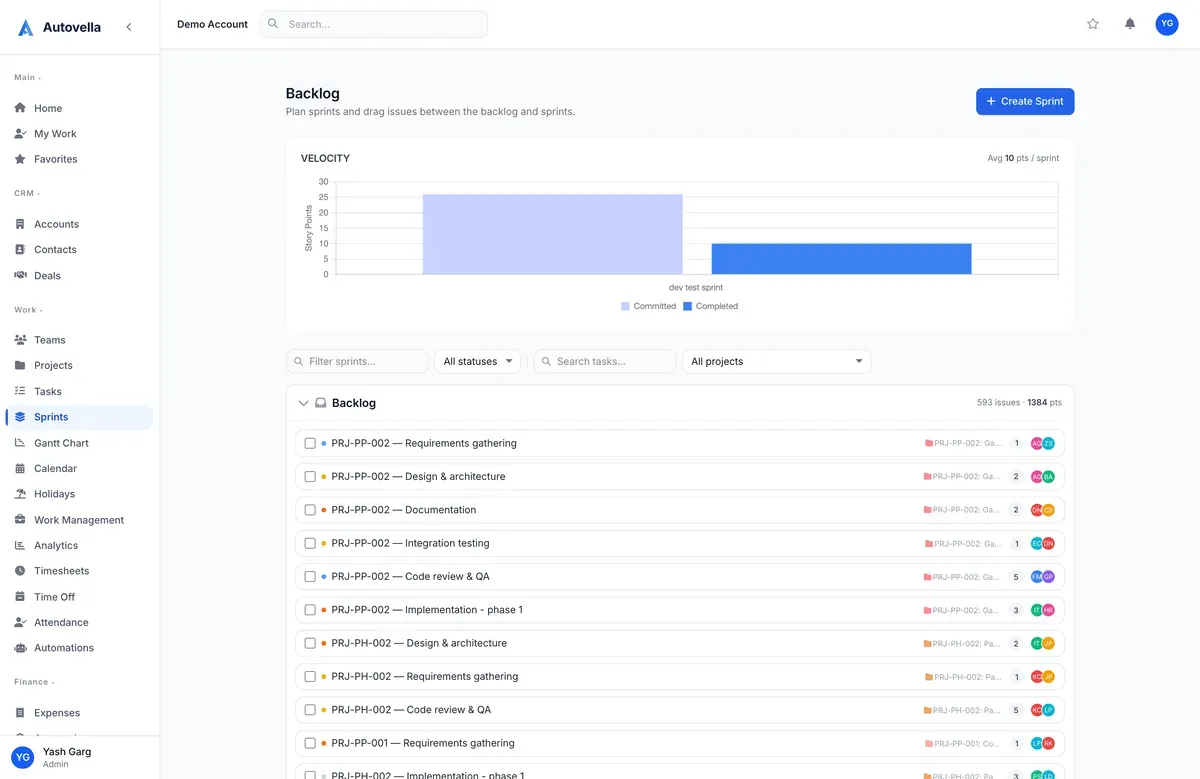
Who is this playbook for, and what does it solve?
It is for product and engineering teams, in-house or at a software consultancy, who run scrum or a sprint-flavoured kanban. Typical pains: a spreadsheet backlog, a separate tracker for sprints, guessed velocity, and engineering work disconnected from the business side. If your team also bills clients for development time, the same workspace carries time tracking and invoices, which is a benefit over a pure issue tracker.
Autovella is a general PSA with an agile module, not a developer-only tool. It does not read your code repository, so you update task status in Autovella itself.
How do I map a software team onto Autovella?
- Project: a product, a client build or a platform area.
- Task: a story, bug or chore. Use Parent Task (Subtask) or Add Child Task to break stories down. Parent progress comes from its children.
- Story Points: the sizing field on each task, a whole number that feeds sprint totals and charts.
- Sprint: a time-boxed container that can hold tasks from any project. Tasks not in a sprint and not completed form the Backlog.
- Dependencies: set on the Gantt chart as Finish to Start, Start to Start, Finish to Finish or Start to Finish, with optional lag. See Tasks, boards, calendar and Gantt.
- RAID Log: record risks, assumptions, issues and dependencies on the project. See RAID log.
Which roles should engineers, leads and stakeholders have?
Every person has one role (see Roles, permissions and team sharing):
- Manager for engineering managers and product owners: full access to projects, tasks, sprints and automations.
- Employee for engineers: can read, create and edit sprints but not delete them, and can create and edit tasks. Moving a task between backlog and sprint needs update permission on Tasks.
- Contractor for outside developers: read-only on projects and sprints, with time logging.
- Admin for the workspace owner.
Stakeholders who only need to watch progress can be added to a project as Viewer, or given a read-only Share link (status, dates and task titles, no budget or team). Use Visible to on a sprint if only certain people should see it.
What are the recommended setup steps?
- Check Sprints is enabled. Sprints appears in the sidebar under Work only if the Agile / Sprints module is on for your organization and your role can read sprints.
- Import your backlog. Load tasks from a CSV. See Importing data.
- Shape the workflow. In Settings, Customization, Custom Fields edit Task Statuses, for example To Do, In Progress, Code Review, QA, Done. Mark Done as Completed and one status as Default.
- Add record types and fields. In Settings, Customization, Object Manager create Task record types such as Bug, Feature and Story, each with its own page layout. Add custom fields like Severity or Environment. See Customizing fields, record types and layouts.
- Size the backlog. Open tasks and fill in Story Points, Priority and Assign To.
- Create the first sprint. On Sprints click Create Sprint, enter a Name and Goal, then drag cards from the Backlog lane. Select several cards with checkboxes or Shift-click and use Move to....
- Start it. Click Start sprint, choose a Duration (1 to 4 weeks or Custom) and confirm the dates.
- Work the board. Open the sprint's Board tab. Under Board Settings set WIP Limits per status and a default swimlane (None, By Assignee or By Priority). These two settings are saved in your browser, not shared.
- Close it. Use Complete sprint on the Sprints page and choose where incomplete issues go: the Backlog or another open sprint. See Sprints and agile planning.
Run your first sprint
Import your backlog, size it in story points and start a two-week sprint. Book a demo to see burndown and velocity live.
Which automations, integrations and reports help a dev team?
Automations (Setting up automation rules):
- Task status changes from In Progress to Code Review: notify the project manager or a role.
- User is @-mentioned in a comment: send an in-app notification so questions do not wait.
- Task status changes to Done: use Send webhook to call Zapier, Make or your own endpoint.
Slack can post task created, task status changed and RAID item created events to a channel, set under Settings, Customization, Integrations. GitHub and Microsoft Teams are listed there as coming soon, so there is nothing to configure yet. Developers who want scripts or AI assistants can use the API or Claude MCP connection.
Reading the numbers. The sprint Reports tab shows Tasks Completed, Story Points done against committed, Avg Cycle Time, Throughput, an On Track / At Risk / Behind banner and the burndown against an ideal line. Once a sprint is completed, the Velocity chart on the Sprints page compares committed and completed points and shows the average. Burndown needs story points and sprint dates to be meaningful.
What should a software team measure?
- Velocity trend: average completed points over recent sprints, used as a starting point for the next plan, not a target.
- Burndown shape: a Remaining line above the Ideal line means more work than planned for that day.
- Avg Cycle Time and Throughput per sprint.
- Carry-over: how many incomplete tasks you move at completion.
- Overdue Tasks and On-Time Delivery in Analytics.
- Workload: the Work Management planner shows scheduled versus estimated hours and flags Overloaded people. See Resource planner.
What does Autovella not do for software teams?
- No repository, pull request or CI integration. GitHub is listed as coming soon.
- No dedicated epics, releases or roadmap view. Use parent tasks, tags, sections and the Gantt chart as approximations.
- Sprint capacity is not computed from points. The planner shows hours, while velocity shows points, so compare them yourself.
- No planning poker, no cumulative flow diagram and no bug triage workflow beyond statuses and record types.
- Burndown works on story points, so unsized tasks do not count in it.
Frequently asked questions
Yes. A sprint is a container that can pull tasks from any project in your organization. Drag tasks from the Backlog lane into the sprint lane.
Use Complete sprint on the Sprints page. The Complete Sprint window shows how many tasks are incomplete and lets you move them to the Backlog or another open sprint. Finished tasks stay attached to the sprint so reports stay accurate.
Yes. The Tasks page has a Board view with columns grouped by Status, Priority, Project or Assignee. The sprint board adds WIP limits and swimlanes.
It needs story points on the sprint's tasks, sprint start and end dates, and at least some completed work. Add those and it appears.
Yes. Admins can create record types such as Bug, Feature and Story for tasks under Settings, Customization, Object Manager, each with its own page layout and custom fields.