To bill a project in Autovella: approve the project's timesheets and expenses in Approvals, open Invoices and click Generate from Project, review and edit the draft, mark it Sent, then record each payment with Record Payment until the balance reaches zero. The Total Invoiced, Paid and Outstanding tiles on the Invoices page help you reconcile. This guide is written for finance admins. For the cross-team view from lead to invoice, see Lead to invoice workflow.
In this guide
What should I check before billing a project?How do I approve timesheets and expenses before invoicing?How do I generate an invoice from a project?How do I review and edit the draft before sending?How do I send the invoice to the customer?How do I record payments and handle part payments?How do I reconcile invoices and chase what is outstanding?Frequently asked questions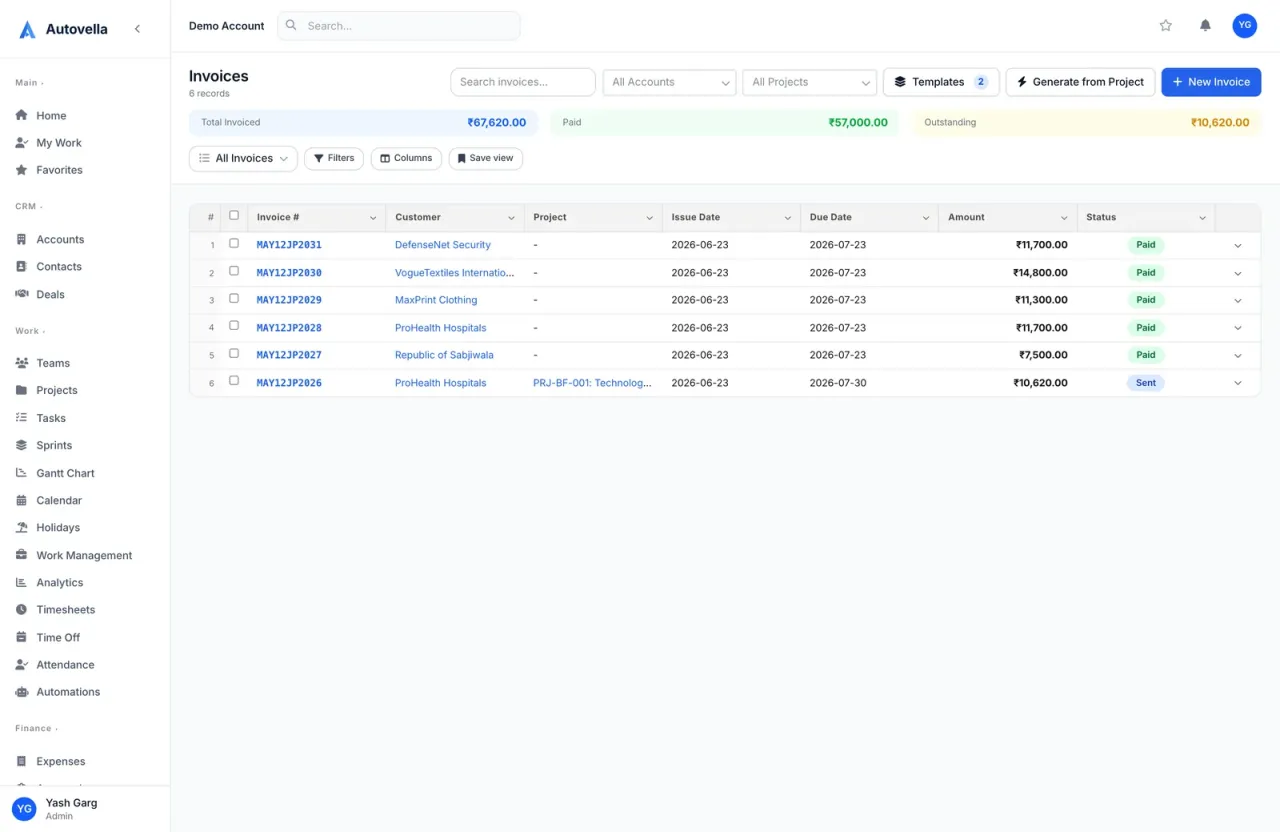
What should I check before billing a project?
A few minutes of preparation prevent most invoice surprises.
- You have access. Admin and Finance can use Invoices by default. The Generate from Project and New Invoice buttons only appear if your role can create invoices. See Quick start by role.
- The account is ready. The customer's Account should have the right billing country and an email address if you plan to email invoices automatically. See Managing accounts, contacts and deals.
- Company defaults are set. Under Setup, Company Settings, Invoices, check auto-numbering, Default Tax Rate, Payment Terms, notes and templates. Tax and currency detail is in Multi-currency and GST tax setup.
- You know the rate. Generate from Project uses a single hourly rate for everyone on the invoice, so decide it before you start.
- You know the date range. Decide which period you are billing, for example the calendar month.
How do I approve timesheets and expenses before invoicing?
Only approved entries reach an invoice. Open Approvals and work through two tabs.
- Timesheets. Filter by project, tick the submitted entries and click Approve Selected. Reject anything wrong with a reason, which is required for timesheets, so the person can fix and resubmit.
- Expenses. Open the Expenses tab, check receipts by opening an expense if needed, then approve. A rejection reason is optional but recommended.
Finance users and admins see everyone's submissions. Managers and project owners only see their direct reports and the projects they own, so entries from other people may be waiting for you. Nobody can approve their own timesheet unless they are an organization-wide approver. If a week is missing, check that the person has clicked Submit Week, see Time tracking and timesheets and Tracking expenses.
Check billable flags now. Time rows have a Bill checkbox and expenses have Billable to client. Fixing a flag is easy before approval and locked afterwards, because submitted and approved time entries keep their original flag.
How do I generate an invoice from a project?
- Open Invoices and click Generate from Project.
- Choose the Customer and the Project. Changing the customer clears the project so a mismatch cannot slip through.
- Set From Date and To Date.
- Replace the placeholder Hourly Rate with your real rate.
- Add a Tax Rate (%) and a Discount (a fixed amount) if needed, choose Payment Terms (Net 15, Net 30, Net 60 or Due on Receipt) and, when multi-currency is on, a Currency.
- Click Generate Invoice. Autovella confirms with the new invoice number and total.
What ends up on the invoice
- Time lines from approved, billable timesheet entries on that project in the range, each at your hourly rate and described with the person, task and hours.
- Expense lines from approved expenses on that project in the range, at their recorded amounts. Autovella does not filter these by the Billable to client box, so remove any internal costs in the editor.
The invoice starts as a Draft, with an issue date of today and a due date 30 days out by default.
Avoid billing the same hours twice. Autovella does not mark timesheet entries or expenses as invoiced. If you generate again with an overlapping date range you will pull the same entries in again. Use consecutive, non-overlapping ranges, such as one calendar month at a time.
For a fixed-fee project, use New Invoice and add a line with Add Custom Item instead. If you see No approved timesheets or approved expenses found, go back to Approvals.
How do I review and edit the draft before sending?
Open the invoice and click Edit. Check each area before the customer sees it:
- Invoice Details: invoice number, issue and due dates, payment terms, tax rate, discount and PDF Template.
- Line Items: adjust a quantity or rate, remove a line you do not want to charge, or add a Custom item for a fee that did not come from timesheets.
- Notes & Terms that print on the PDF, such as bank details.
- Totals (Live): subtotal, discount, tax and total update as you type. Tax is calculated on the subtotal after the discount.
Click Save. Open More and choose Print / Save as PDF to proof the layout. Templates are covered in Invoice and quote templates. Invoice numbers must be unique, so if you type one yourself and it is taken you will see that it already exists.
Make month-end billing painless
See approvals, invoicing and payments working together in one workspace with a short guided demo.
How do I send the invoice to the customer?
Click Mark as Sent on the draft. The status changes to Sent and the Invoice is sent automation trigger fires. On its own this does not email anyone. Choose one of these ways to deliver it:
- Automatic email. Connect a mailbox under Setup, Company Settings, Email and create an automation with the trigger Invoice is sent and the action Send email to the Customer (invoice account email). See Setting up automation rules.
- Manual delivery. Use Print / Save as PDF and attach the file to your own email or portal.
Use Resend Invoice in the More menu for a reminder. An invoice whose due date has passed is shown as Overdue automatically. A cancelled invoice cannot be sent.
How do I record payments and handle part payments?
- When money arrives, open the invoice and click Mark as Paid. It reads Record Payment once a part payment exists. The list's row menu also has Record Payment.
- Check the Amount Paid, which defaults to the full balance. Lower it for a part payment. A payment above the balance is refused.
- Set the Payment Date to the date the money was received and pick the Payment Method: Bank Transfer, Credit Card, PayPal, Stripe, Cash, Check or Other.
- Click Confirm Payment.
The status moves to Partially Paid until the balance is zero, then Paid. Each payment appears in the Payments panel, and the sidebar shows Amount Paid and Balance Due. If you entered a payment wrongly, click Reverse beside it, optionally with a reason, and Autovella recalculates the invoice. A paid invoice cannot be edited or deleted, and a cancelled invoice cannot take payments.
How do I reconcile invoices and chase what is outstanding?
Autovella does not import bank statements, so reconciliation means matching your bank against recorded payments and checking the totals.
- Open Invoices and read the tiles: Total Invoiced, Paid and Outstanding. They follow your current filters, so filter by customer or project to reconcile one client.
- Use the search box and the customer and project filters, and sort the list to find Overdue and Partially Paid invoices.
- Open each invoice and compare its Payments panel (dates, methods and amounts) to your bank lines. Fix mismatches with Reverse and re-record.
- For month-end lists, build a custom report on the data type Invoices in Analytics, adding calculated columns such as Balance Due and Days Overdue, then Export CSV. See Analytics and reports and Scheduled reports and alerts.
- On the Finance tab in Analytics, Realization Rate shows paid divided by invoiced.
Month-end checklist
- Approve all submitted timesheets and expenses for the month.
- Generate one invoice per project for the month, with non-overlapping dates.
- Review, send and note the due dates.
- Record every payment received, with its real date.
- Export the overdue list and follow up.
If you made a mistake on an unpaid invoice, use Cancel Invoice in More (it cannot be undone) or Delete a draft, which sends it to the recycle bin. See Creating and sending invoices for every invoice action, and Troubleshooting common issues if something will not save.
Frequently asked questions
It includes all approved expenses for the project in the date range and does not filter them by the Billable to client box. Remove any you do not want to charge in the invoice editor before sending.
No. Entries are not marked as invoiced, so overlapping date ranges pull the same approved entries again. Use consecutive, non-overlapping ranges for each invoice.
Admins and Finance users approve everyone's timesheets and expenses. Managers and project owners approve only their direct reports and projects they own, and nobody can approve their own timesheet unless they are an organization-wide approver.
Use New Invoice and add a line with Add Custom Item for the agreed amount. Generate from Project is designed for approved hours and expenses.
Open the invoice, click Mark as Paid or Record Payment, lower the Amount Paid, add the date and method and confirm. The invoice shows Partially Paid until the balance is zero.
The Outstanding tile on the Invoices page shows the amount for your current filters. For a detailed list, build an Invoices custom report with the Balance Due and Days Overdue columns and export it to CSV.