IT services firms and MSPs can use Autovella as the project, time and billing layer for every client: one Account per client, Projects for onboarding, migrations and ongoing work, Timesheets for billable hours, Automations for routine steps, and Invoices generated from approved time. It is a PSA, not a help desk, so ticketing, SLAs and monitoring are outside its scope. This playbook shows what to set up and what it does not do. For the product overview see Autovella for IT services.
In this guide
Who is this playbook for, and what are the typical pains?How do I map clients and services onto Autovella?Which roles and permissions fit an IT services team?What are the recommended setup steps?Which automations and reports are worth turning on?What should I measure per client?What does Autovella not do for MSPs?Frequently asked questions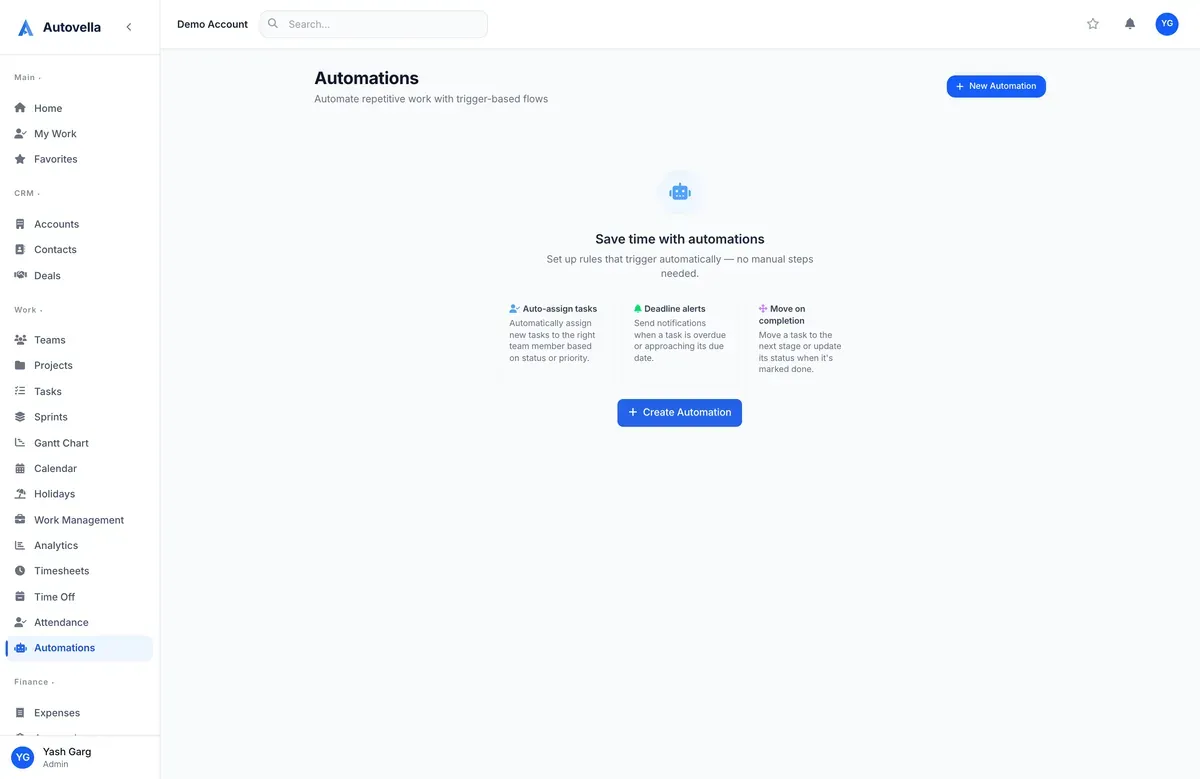
Who is this playbook for, and what are the typical pains?
It is for IT service providers, MSPs and systems integrators that run many small projects across many clients: onboardings, migrations, security reviews, cloud work and change requests, plus recurring support effort. Typical pains are hours lost between small jobs, no per-client view of margin, manual hand-offs between steps, and invoices built from memory at month end.
Autovella helps by giving each client a single record trail from account to invoice and by automating notifications around routine steps. Benefits are qualitative: less re-keying, clearer ownership and a per-client view of effort.
How do I map clients and services onto Autovella?
- Accounts. Create one per client with Type Customer, billing address and currency. Add Contacts, tick Primary Contact for the main person. See Managing accounts, contacts and deals.
- Deals. Track new business and upsells through the pipeline. Convert to Project creates the delivery project when a deal is won.
- Projects. Link each project to its Account. Use separate projects for each onboarding, migration or change, and one standing project per client for ongoing support work.
- Tasks. Use Sections for stages, Tags for service lines, and the Billable checkbox to decide what can be invoiced.
- Timesheets and Expenses capture hours and pass-through costs such as licences or hardware.
- Invoices bill by project. See Lead to invoice workflow.
Keep a standard project for each service (for example a new-client onboarding checklist) and start from New Project, From Existing Project.
Which roles and permissions fit an IT services team?
- Admin for the owner or operations head.
- Manager for service delivery managers and project leads. Full projects, tasks, approvals and automations; read access to Analytics.
- Employee for engineers and consultants. They log time and expenses and edit tasks but do not see invoices or CRM.
- Contractor for subcontracted engineers. Read-only on projects, time and expense logging.
- Finance for billing. Full invoices, expenses, timesheets and approvals.
Use Teams (for example Service Desk, Projects, Security) and Add Team on a project to staff it quickly. If a client should see progress, use a read-only guest Share link, which shows status, dates and task titles but never budget, team or rates. See Roles, permissions and team sharing.
What are the recommended setup steps?
- Import accounts and contacts first, then projects, using Import on each page. See Importing data.
- Set rates. Add Cost Rate and Bill Rate to each person's profile so per-account profitability can be calculated.
- Configure statuses and fields. In Settings, Customization, Custom Fields add Project Custom Fields such as Service Tier or Contract Type, and Account Custom Fields such as Support Plan. See Customizing fields.
- Build standard projects for onboardings and standard changes, and copy them with New Project, From Existing Project.
- Set up holidays and time off by location under Holidays and Time Off, so planning reflects coverage. See Time off, holidays and attendance.
- Connect email under Settings, Company Settings, Email (Gmail, Outlook or SMTP) so automation and scheduled report emails go out.
- Set invoice defaults in Settings, Company Settings, Invoices: tax, payment terms, auto-numbering. For several currencies see Multi-currency setup.
- Start a weekly rhythm: engineers log and submit time on Timesheets, managers approve under Approvals, Timesheets, Finance runs Generate from Project.
Put every client in one place
Import your accounts, template your standard services and start logging time. Book a demo to see per-client delivery and billing.
Which automations and reports are worth turning on?
Automation is where small teams save routine effort. Open Automations, New Automation and consider (see Setting up automation rules):
- Project is created: notify all Managers, or send a webhook to your ticketing or documentation tool.
- Member is added to a project: notify the new member.
- Task status changes to Done on a condition for a specific project: notify the project manager.
- Timesheet is submitted and Expense is submitted: notify the approver.
- Invoice is sent: email the client's account contact. Invoice is paid: notify Finance.
For reporting, use the Custom Report tab on Time Entries filtered by project, save the view and email it on a schedule. Alerts can warn Finance about invoices past due. See Scheduled reports and alerts.
What should I measure per client?
- Hours by project and account using Time Entries in the Custom Report builder or the Time by Project panel on a person's page.
- Billable Ratio in Analytics Overview, to see how much effort is chargeable.
- Gross Margin and Realization Rate on the Finance tab, once cost rates are set.
- Budget Used on a project's Health tab for fixed-price work.
- Utilisation and Overloaded counts in Work Management. See Resource planner.
- Overdue Tasks across all active projects.
What does Autovella not do for MSPs?
Be clear about the limits before you plan around them:
- No ticketing, service desk or SLA timers. Requests can be tasks, but there is no queue, inbound email-to-ticket or SLA tracking.
- No remote monitoring, device inventory or patching integrations.
- No automatic recurring invoices. Invoices are created by a person using Generate from Project, New Invoice or custom items, so schedule a reminder for monthly managed-service billing.
- No contract or asset register beyond custom fields on accounts and projects.
- No customer self-service portal for raising requests. Guest links are read-only status pages.
Frequently asked questions
No. Autovella is a project, time and billing system. It has no ticket queue, email-to-ticket intake or SLA timers, so keep your help desk and use Autovella for projects, hours and invoices.
Yes, manually. Use New Invoice with Custom Items for a fixed monthly fee, or Generate from Project for time. There is no automatic recurring invoice generation, so create each period's invoice yourself.
Link projects to accounts, log time with cost rates set, and use the Finance tab in Analytics for Gross Margin and Realization Rate. You can also build a Custom Report on projects, time entries and invoices.
Not by default. The Employee role cannot see invoices or CRM. An admin can add access through a custom role, a permission set or a per-user grant.
Partly. Start from a copied standard project, then use automations on events such as Project is created or Member is added to a project to send notifications, emails or a webhook to another system.