A marketing agency can run the whole client lifecycle in Autovella: track the pitch as a Deal, convert it into a Project, run campaign work on a Board and the Calendar, log billable hours on Timesheets, and generate the invoice from approved time. This playbook shows how to set that up, which roles to give people, and what Autovella does not do. For the product overview see Autovella for agencies and for marketing teams.
In this guide
Who is this playbook for, and what problems does it solve?How do I map an agency onto Autovella?Which roles and permissions should an agency use?What are the recommended setup steps?Which automations and reports are worth turning on?What should an agency measure?What does Autovella not do for agencies?Frequently asked questions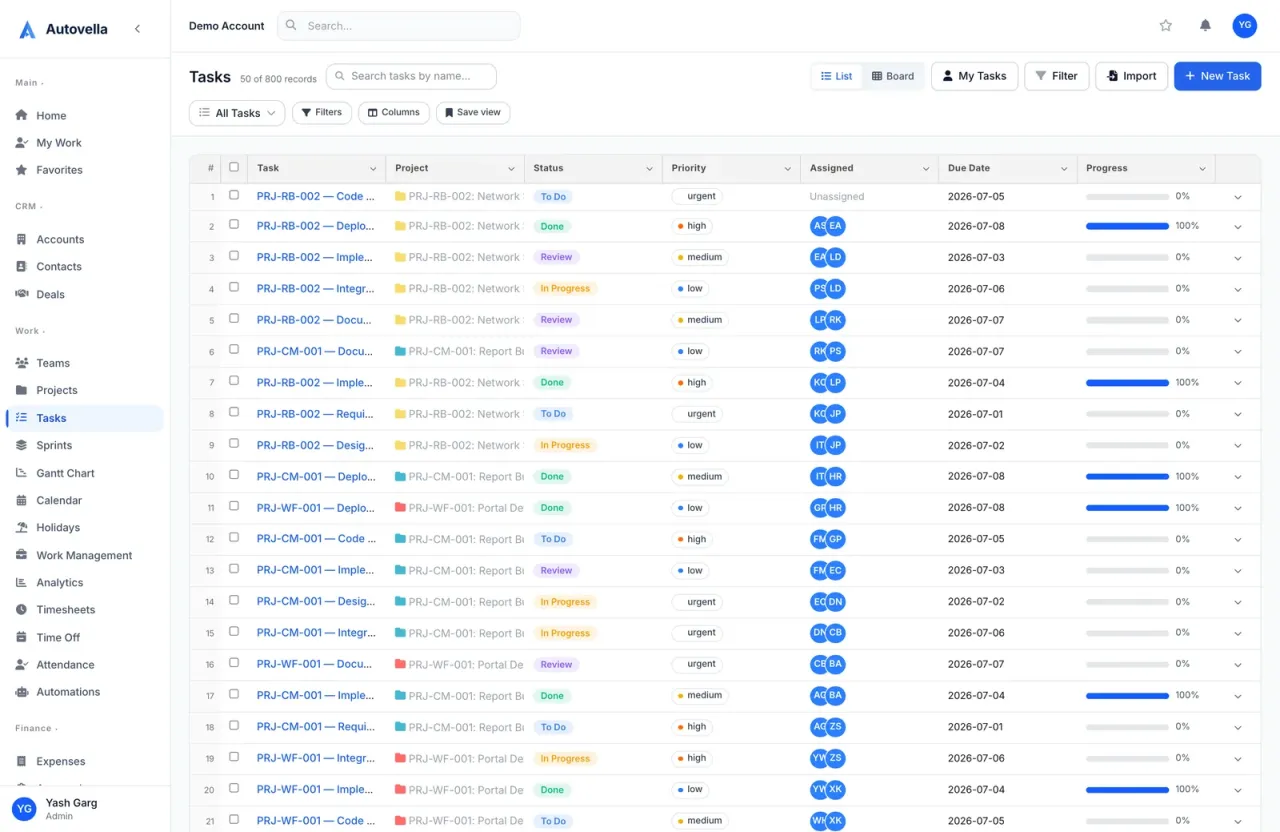
Who is this playbook for, and what problems does it solve?
It is for agencies of roughly 5 to 100 people that sell campaigns, content or digital projects, and juggle several tools: a CRM for new business, a task tool for delivery, spreadsheets for hours and a separate invoicing app. The usual pains are lost context between sales and delivery, requests arriving from chat and email, hours that never get billed, and no clear view of which client is profitable.
Autovella addresses these by keeping the client, deal, project, tasks, time, expenses and invoices in one data model. Benefits are qualitative: less re-typing between tools, a single place to see what is due, and billing that starts from approved time rather than memory.
How do I map an agency onto Autovella?
Use this chain, which mirrors how agency work actually flows:
- Accounts and Contacts hold each client and the people you deal with. See Managing accounts, contacts and deals.
- Deals track new business through the seven stages from Prospecting to Closed Won. Add line items for the scope you quoted.
- Convert to Project on a won deal creates a project with the deal name, account, owner and amount as budget. Each line item becomes a task.
- Projects and Tasks carry delivery. Use a Sections structure for phases such as Brief, Concept, Production and Launch.
- Timesheets and Expenses capture billable hours and pass-through costs.
- Invoices are generated from approved time and expenses. See Lead to invoice workflow.
For requests that are not part of a project, create a standing project such as "Client X - Requests" or an internal "Marketing Requests" project and treat each request as a task. Set Priority (Low, Medium, High, Critical) and Assign To, then work the queue on the Board, grouped by Status, Priority or Assignee.
Which roles and permissions should an agency use?
Every person has one role. The built-in roles map well to an agency (details in Roles, permissions and team sharing):
- Admin for owners and operations leads. Full control, including Settings and invoices.
- Manager for account directors and producers. Full access to projects, tasks, teams, approvals and automations, read access to Analytics. Managers cannot see invoices or CRM by default.
- Employee for designers, copywriters and strategists. They create and edit tasks, log time and expenses, but cannot see invoices or CRM.
- Contractor for freelancers. Like an Employee but read-only on projects, with time and expense logging.
- Finance for the person who bills. Full access to invoices, expenses, timesheets and approvals.
If your account managers also run pipeline, give them CRM access through a custom role under Settings, Users & Access, Roles. Under Org-Wide Defaults set Projects to Private if clients are confidential, then add people on each project's Team tab as Viewer, Editor or Manager.
Client access. A project's guest Share link is read-only and shows status, dates and a task list, with no budget, team or rates. Clients cannot comment or approve through it. See Sharing projects and guest links.
What are the recommended setup steps?
- Import your clients. Use Import on Accounts, then Contacts (contacts need an existing account). See Importing data.
- Tailor statuses. In Settings, Customization, Custom Fields edit Task Statuses, for example add "Client Review" between Review and Done, and mark Done as Completed.
- Add custom fields. Add Task Custom Fields such as a Channel dropdown (Social, Email, Paid, Web) or a Deliverable type, so you can filter and report by channel. See Customizing fields.
- Build a standard campaign project. Create one typical campaign project with sections and tasks, then keep it as your master copy. Start new campaigns with New Project, From Existing Project.
- Set rates. Open each person under Users and set Cost Rate and Bill Rate. Set a project-specific bill rate on the project's Team tab where a client pays a different rate.
- Set up time rules. Ask people to log on Timesheets weekly and keep the Bill box ticked only for client work. Managers approve under Approvals, Timesheets.
- Configure invoicing. In Settings, Company Settings, Invoices set tax defaults and payment terms, and choose a template (see Invoice and quote templates). If you bill in several currencies, see Multi-currency setup.
- Plan capacity. Use Work Management to schedule hours per person per week. See Resource planner.
Set up your agency workspace
Start with clients and one campaign template, then add time tracking and invoicing. Book a demo to see it run end to end.
Which automations and reports are worth turning on?
Open Automations and create rules using triggers that exist today (see Setting up automation rules):
- Task status changes from Review to Done: send a notification to the project manager.
- Timesheet is submitted: notify the submitter's manager so approvals do not pile up.
- Invoice is sent: send an email to the customer. This needs a mailbox connected under Settings, Company Settings, Email.
- User is @-mentioned in a comment: notify them, which keeps feedback loops short.
For reporting, build a view on the Custom Report tab in Analytics and schedule it under Scheduled Reports, for example a Monday list of overdue tasks or invoices past due. See Scheduled reports and alerts. Optional: connect Slack under Settings, Customization, Integrations to post task status changes and paid invoices to a channel.
What should an agency measure?
In Analytics, start with these views:
- Billable Ratio and Hours Logged on the Overview tab, to see how much time is client work.
- Budget Used on each project's Health tab, to catch scope creep during delivery.
- Overdue Tasks and On-Time Delivery for campaign reliability.
- Gross Margin and Realization Rate on the Finance tab, which need cost rates to be set. Realization is Paid divided by Invoiced.
- Utilisation in Work Management, to see who is overloaded before the next launch.
See Analytics and reports for how each figure is calculated.
What does Autovella not do for agencies?
Be clear-eyed about the limits before you commit:
- There is no public request form or intake portal. Requests become tasks created by your team.
- There is no built-in proofing or asset approval tool. You can attach files and comment on tasks, and model approval with a custom status. The Approvals page covers timesheets, expenses and time off only.
- There is no social publishing, email marketing or ad-platform reporting. Autovella manages the work and the money, not the channels.
- Retainers have no dedicated billing object. Use a project with a budget, or create invoices manually.
- Invoices are not emailed automatically without the automation described above, and there is no built-in recurring invoice scheduler.
Frequently asked questions
Not automatically, but in one click. Open the deal and choose Convert to Project. The new project takes the deal name, account, owner and amount as budget, and each deal line item becomes a task.
On Invoices choose Generate from Project, pick the customer, project and date range, and enter your hourly rate. Autovella includes approved, billable timesheet entries and approved expenses. Approve time first, otherwise the invoice comes out empty.
Yes, in a limited way. A guest Share link shows a read-only page with the project's status, dates and task list, without budget, team or rates. Clients cannot comment through the link.
Yes. The Contractor role is read-only on projects and can log time and expenses. Combine it with Private Org-Wide Defaults and add them only to the projects they work on.
Yes, when the Multi-Currency feature is enabled for your organization. You add currencies under Settings, Company Settings, Currencies and choose the currency per invoice and expense.